Why Your Car Stereo Won't Play That Audio File
By Free Audio Editor · · How we test
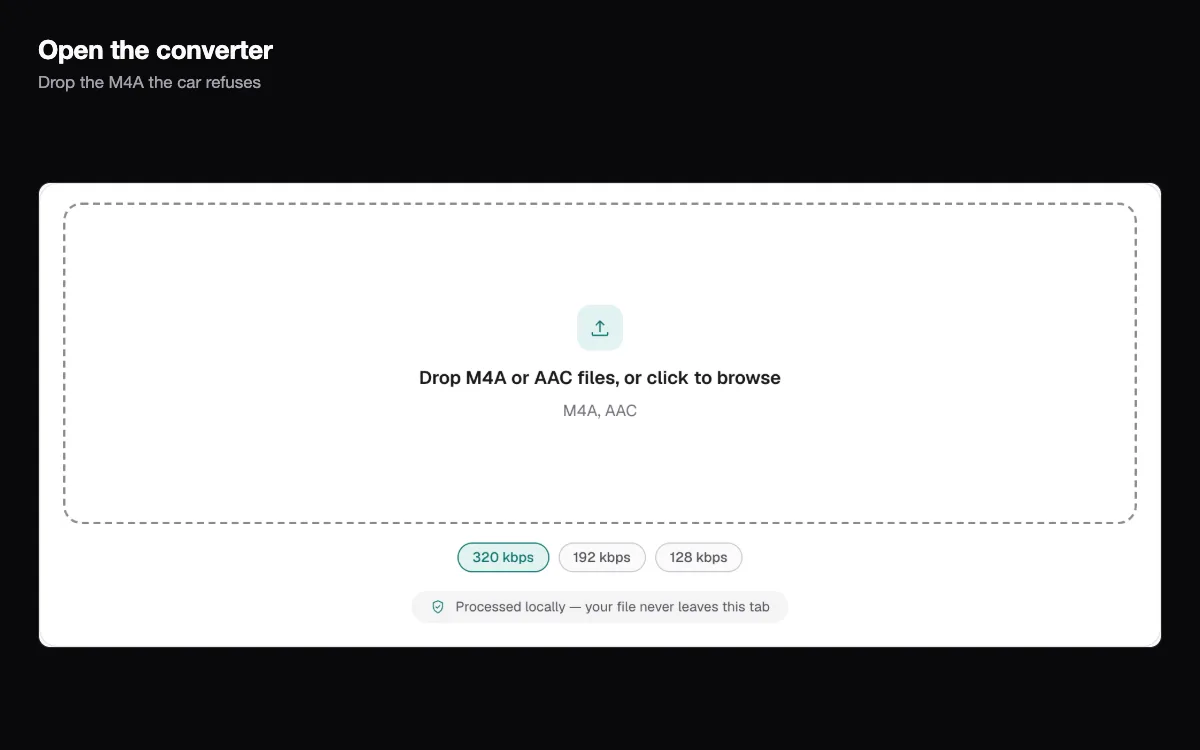
The stick works in every laptop you own. The car either shows an empty folder, skips the track, or plays the first song and refuses the rest. Almost every time, the files are fine and the head unit is pickier than the computer: it reads only the formats and the disk layout its firmware was built for. The usual fix is converting everything to MP3, and the M4A to MP3 converter handles the most common case. The causes below are ordered by how often they turn out to be the one.
The quick fix
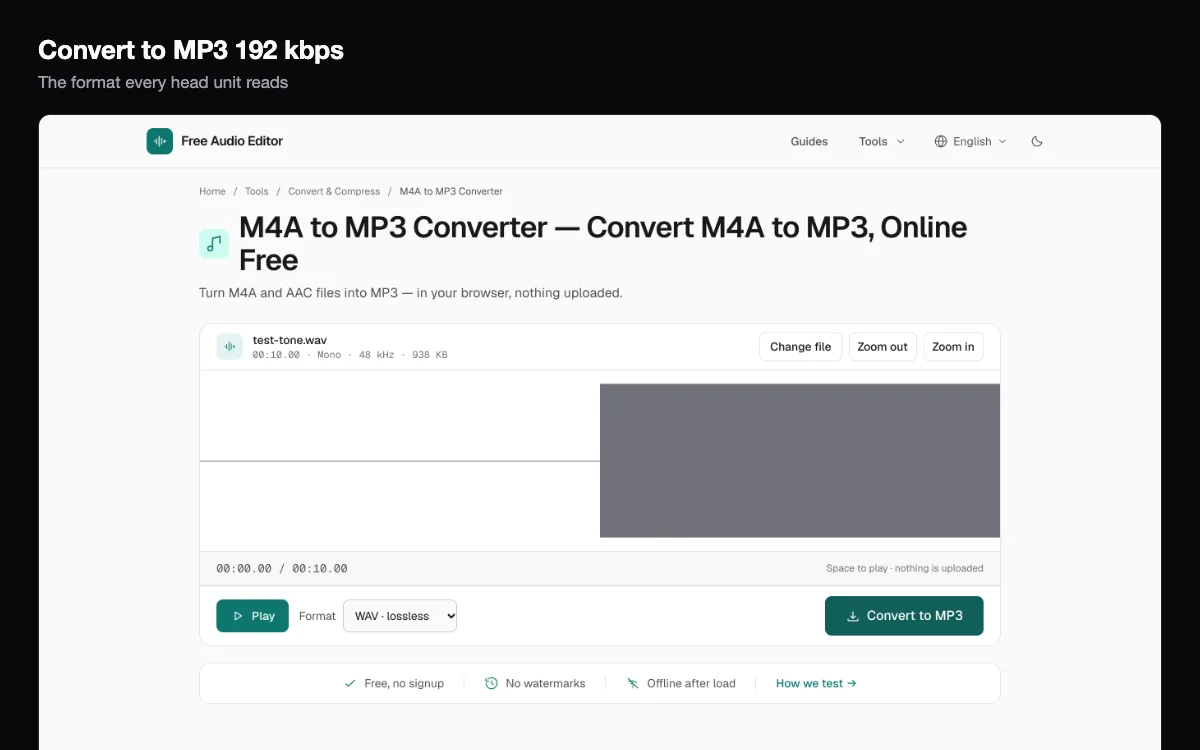
Convert the refusing tracks to MP3 at 192 kbps and try them again. MP3 is the one codec every car stereo from the last fifteen years reads. One track is enough for a test before you convert the whole stick.
On Windows, iTunes is not required. Convert M4A to MP3 on Windows uses VLC, Audacity, ffmpeg, or the browser page. The browser path installs nothing. The Mac Music app steps stay in that same guide.
The causes, in order
- A codec the head unit lacks. M4A plays in many modern cars, FLAC in
fewer, ALAC and OGG in almost none, and audiobook
.m4bfiles rarely. The laptop decodes everything, which is exactly why the stick works there and not in the car. Convert FLAC with the FLAC to MP3 converter, Opus voice notes with the Opus converter, and M4A with the link above. - USB formatting. An older head unit reads FAT32 and goes quiet on exFAT or NTFS sticks, showing no files at all rather than showing broken ones. If the whole stick is invisible, reformat it to FAT32 on the computer (this erases it, so copy the files off first).
- File and folder limits. Some units ignore folders nested more than a couple of levels deep, stop at a few hundred files per folder, or hide files whose names are too long. Flatten the structure and shorten the names.
- A damaged file. If the laptop plays it but the track skips halfway, the download may be incomplete. Re-download before blaming the car.
Check the head unit’s manual against this list and the cause usually announces itself: no files at all points to formatting, one format refused points to the codec, and a limit shows up as partial folders.
Why MP3 is the car answer
MP3 is the one format the industry agreed on. Converting costs little at the right rate: 192 kbps is where music stops being the weak link on car audio, and an hour lands near 85 MB. The conversion cannot restore anything a previous encode threw away, so start from the best file you have, not from another MP3.
Two special cases worth knowing
Bluetooth works but the USB stick does not. That pairing is not a contradiction. Over Bluetooth, the phone decodes the file and the car only receives finished audio; over USB, the head unit does the decoding itself and meets the codec limits directly. The same track can sail over the air and fail on the stick, and the fix is still the same conversion.
Tracks bought or streamed from subscription services. Downloads from music-subscription apps carry protection, and no converter on this site removes it; the M4A guide covers the locked files honestly. Files you ripped from your own CDs or downloaded as plain AAC convert fine.
Keeping the stick boring
The stick that always works is formatted FAT32, holds folders one level deep, carries MP3 files at 192 kbps, and gets new tracks copied on, never edited in place. Boring on purpose. The interesting experiments belong to the laptop, where every format plays and nothing refuses a ride.
Sources
More hands-on walkthroughs in all guides.