Compress Audio for Email and WhatsApp
By Free Audio Editor · · How we test
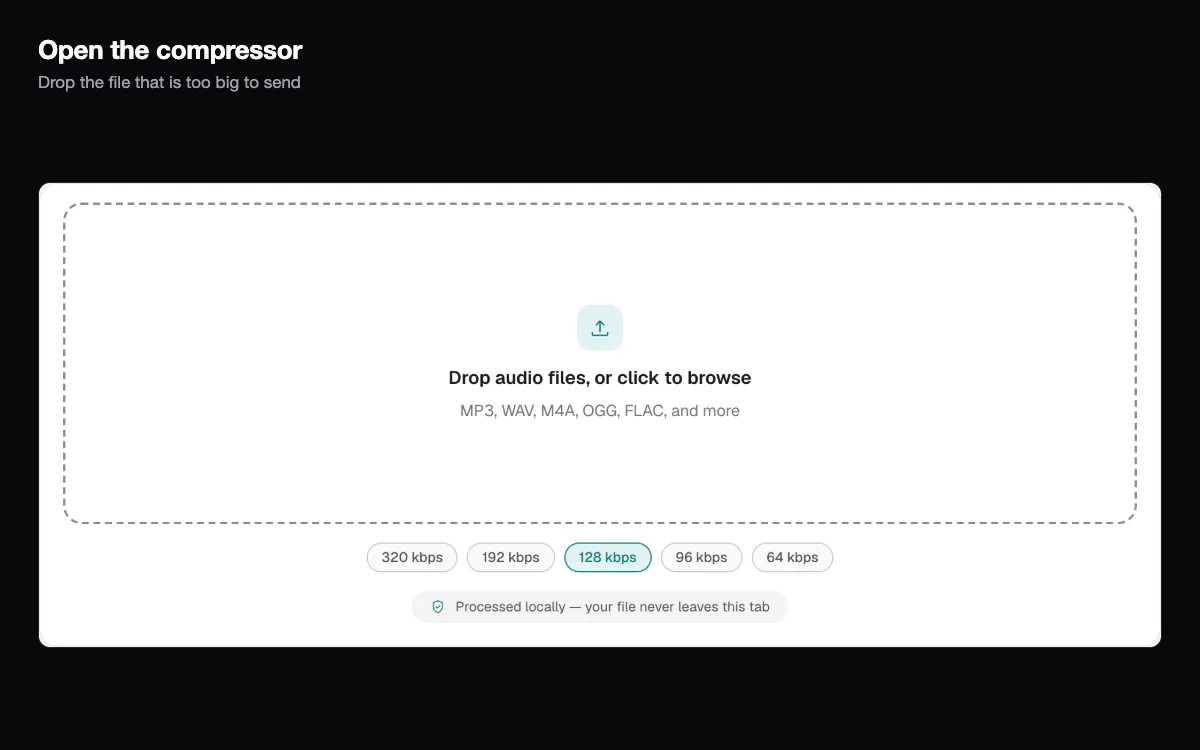
An audio file gets rejected for one reason: it is too big for the inbox or the chat. A three-minute WAV can be 30 MB. The same recording as a 128 kbps MP3 is about 3 MB. The audio compressor re-encodes a file at 64, 96, 128, 192 or 320 kbps in the browser, and nothing is uploaded, so a private voice memo stays private. The fix is a lower bitrate, not a zip file and not a renamed extension.
Do the math before you choose a bitrate
For stereo MP3, one minute is roughly:
- 2.4 MB at 320 kbps
- 1.4 MB at 192 kbps
- 1 MB at 128 kbps
- 0.5 MB at 64 kbps
Gmail rejects attachments over 25 MB. Many corporate mailboxes cap at 10 MB. Chat apps have their own limits and often re-compress audio again on the way out, which is another reason to start small.
If the goal is “under 10 MB”, a 10-minute voice recording at 128 kbps is about 10 MB, right at the edge. At 64 kbps it is about 5 MB, and speech still sounds clear.
Cut first, compress second
Compression lowers the bitrate; it does not remove the ten seconds of silence at the start. Trimming first makes the file shorter, and a shorter file at the same bitrate is smaller. Doing both gives you the smallest useful file with the least quality loss.
- If the recording has a long pause or a false start, trim it with the audio trimmer or remove gaps with the silence remover.
- Open the audio compressor and drop the trimmed file.
- Pick the bitrate for the content. 64–96 kbps for speech, 128 kbps for casual listening, 192 kbps for music you care about.
- Listen to the preview. Check a sibilant word, an “s” or a “sh”, because that is where low bitrates fail first.
- Export and send.
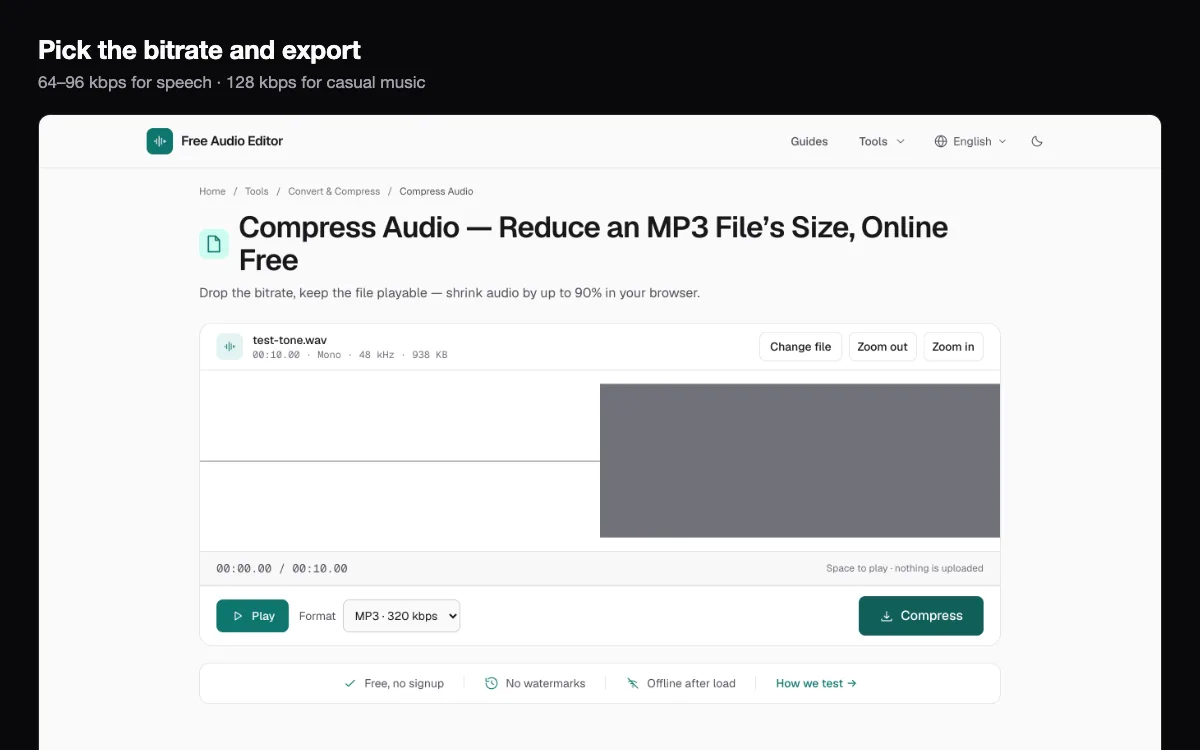
If the file starts as a WAV, convert it to MP3 first with WAV to MP3. The compressor also accepts WAV, but the output is MP3 either way; starting from the lossless original and encoding once is cleaner than encoding a second-generation MP3.
Which bitrate for which sound
Speech (64–96 kbps). A voice memo, a lecture, a podcast episode with no music. The ear is forgiving of speech at low bitrates, and the file gets small fast.
Music at 128 kbps. Fine for a reference or a demo. Cymbals and reverb tails start to smear, but most listeners on phone speakers will not notice.
Music at 192 kbps. The everyday setting when the file still has to sound good. This is the usual compromise for email.
320 kbps. Almost never needed for an email attachment. It is the right choice for a file you will keep and listen to closely, not for one you are trying to squeeze under a size cap.
Why zipping does not help
MP3 is already compressed. A zip archive of an MP3 typically saves a percent or
two, not the 60% you need. Renaming .wav to .mp3 does not change the bytes:
the file is still a WAV and many players will refuse it.
The only honest ways to shrink audio are a lower bitrate, a shorter file, or a more efficient codec. For email and chat, a lower-bitrate MP3 is the one that plays everywhere.
What you lose
Every re-encode is another lossy generation. A 320 kbps MP3 turned into 128 kbps loses detail; a 128 kbps MP3 turned into 64 kbps loses more. If you still have the WAV or the original recording, start from that.
Tags and artwork are not copied by this page. If the title matters, add it afterwards with the MP3 tag editor, which changes tags without touching the audio.
Details on bitrate choices and the size math are on the compress audio page. If the file is a WAV, the how to edit a WAV file covers when to keep the lossless copy and when the MP3 is enough.
Sources
More hands-on walkthroughs in all guides.