How to Edit a WAV File in the Browser
· Free Audio Editor Guides
A WAV file is the audio with the MP3 compression left off. You can trim it, fade it and change its level in the browser without turning it into an MP3 first. For a cut, a fade or a level change, installing a WAV editor is more tool than the job needs. Convert once, at the end, if you need a smaller file to send.
Opening a WAV in a converter and editing the MP3 afterwards is the long way around. Every later cut then re-encodes a file that has already lost the detail you started with.
Open the WAV as it is
Drop the .wav onto the MP3 editor or the
audio trimmer. Both decode it in the tab. There is no
convert step before the edit, and nothing is uploaded.
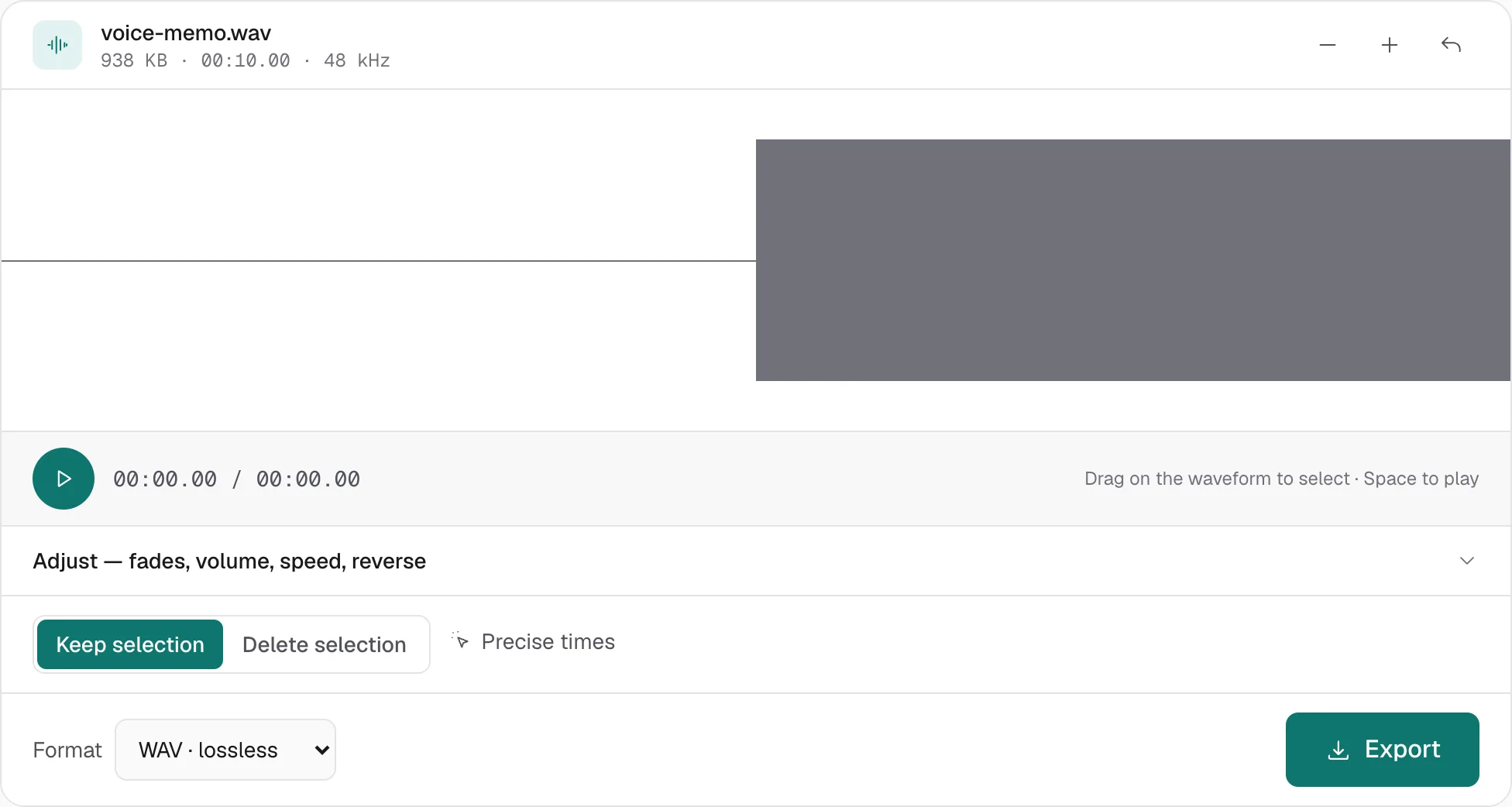
If the page refuses the file, the browser could not decode that WAV. Standard PCM opens. An unusual encoding that will not play in an ordinary browser tab will not open here either. That limit is the decoder, not a file-size cap.
The edits are the same ones used on an MP3:
- Drag a region. Keep selection crops to it. Delete selection removes it. The walkthrough for recordings is how to trim audio.
- Fade in and Fade out in Adjust shape the start and end of the export, up to 5 seconds.
- Volume runs from 10% to 200%. A quiet field recording that needs more than that belongs on increase volume.
- Speed runs from 0.5× to 2×, and the pitch moves with the tempo. To move the key and keep the length, use the pitch changer.
One export is one file. Zoom in with the + button and place the cut on a pause, not in the middle of a word.
Edit, then decide the format
WAV on the format menu is 16-bit PCM at the file’s own sample rate. Stereo at 44.1 kHz is about 10 MB per minute. A three-minute song is about 30 MB. That size is uncompressed audio, not a bloated export.
Use WAV when:
- You will edit again. Staying in PCM means the next cut does not add another MP3 generation.
- Someone asked for WAV: a DAW, a sampler, a press file.
- The source was already 16-bit and you want the same resolution back.
A 24-bit or 32-bit float WAV is stored as 16-bit on the way out. The page does not write a 24-bit file. If that extra resolution is the reason you have the WAV, do the delicate work in a desktop editor and keep its export.
MP3 is the file you send.
- 320 kbps is the point where almost nobody can hear the difference from the WAV in a casual listen. Use it for music you keep.
- 192 kbps is the everyday balance.
- 128 kbps is for voice. Music sounds dull here.
A 50 MB WAV lands around 4–5 MB at 192 kbps and around 11 MB at 320 kbps. The exact number follows the length and the sample rate. The conversion itself is the WAV to MP3 page, and it is the right last step when the edit is already finished.
Tags and cover art are not copied into that MP3. Add them afterwards with the tag editor, which only rewrites the label and leaves the audio bytes alone.
MP3 to WAV does not turn the clock back
Decoding an MP3 to WAV gives you exactly what the MP3 already contains, as 16-bit PCM, with no further loss. It does not restore what the MP3 encoder threw away. Be skeptical of any converter that claims a quality upgrade.
The honest order, when you still have the WAV, is: edit the WAV, export MP3 once at the end. The honest order, when you only have the MP3, is: decode to WAV if a tool demands it, edit there, and compress once. The MP3 to WAV page is that decode. It is not a remaster.
What stays on the machine
The original WAV is not modified. The download is a new file. Refresh the tab and the session disappears, which is the point of never uploading it. A laptop handles an album track or a long voice memo. A feature-length file can run the tab out of memory. That is the moment to move the same WAV into a desktop editor that reads from disk. The Audacity note is the line between those two jobs. When the file you send is an MP3, how to edit an MP3 file is the map of which edit belongs on which page.
More hands-on walkthroughs in all guides.