How to Trim Audio Online (Free, No Upload)
· Free Audio Editor Guides
Trimming audio means keeping one stretch of a recording and dropping the rest: the silence before a voice memo, the dead air after a podcast answer, the part of a meeting you actually need to send. Cropping is the same operation. You mark the region that stays.
That is a different job from cutting a song down to the chorus. The controls are the same. The decisions are not.
What you need
- The file. MP3, WAV, M4A, FLAC and OGG all open if your browser can play them.
- The audio trimmer. It runs in the tab. Nothing is uploaded.
- About a minute.
Trim the file
Drop the file onto the trimmer, or click to browse. The waveform appears immediately. There is no upload bar, because the file never leaves the device.

Drag across the waveform to mark a region. The timecode under the play button shows your position to a hundredth of a second. If the drag is too coarse, open Precise times and type the start and end in seconds.
Press play. It plays the selection, not the whole file. Nudge the handles until the start lands on the first word and the end lands after the last one, not in the middle of either.
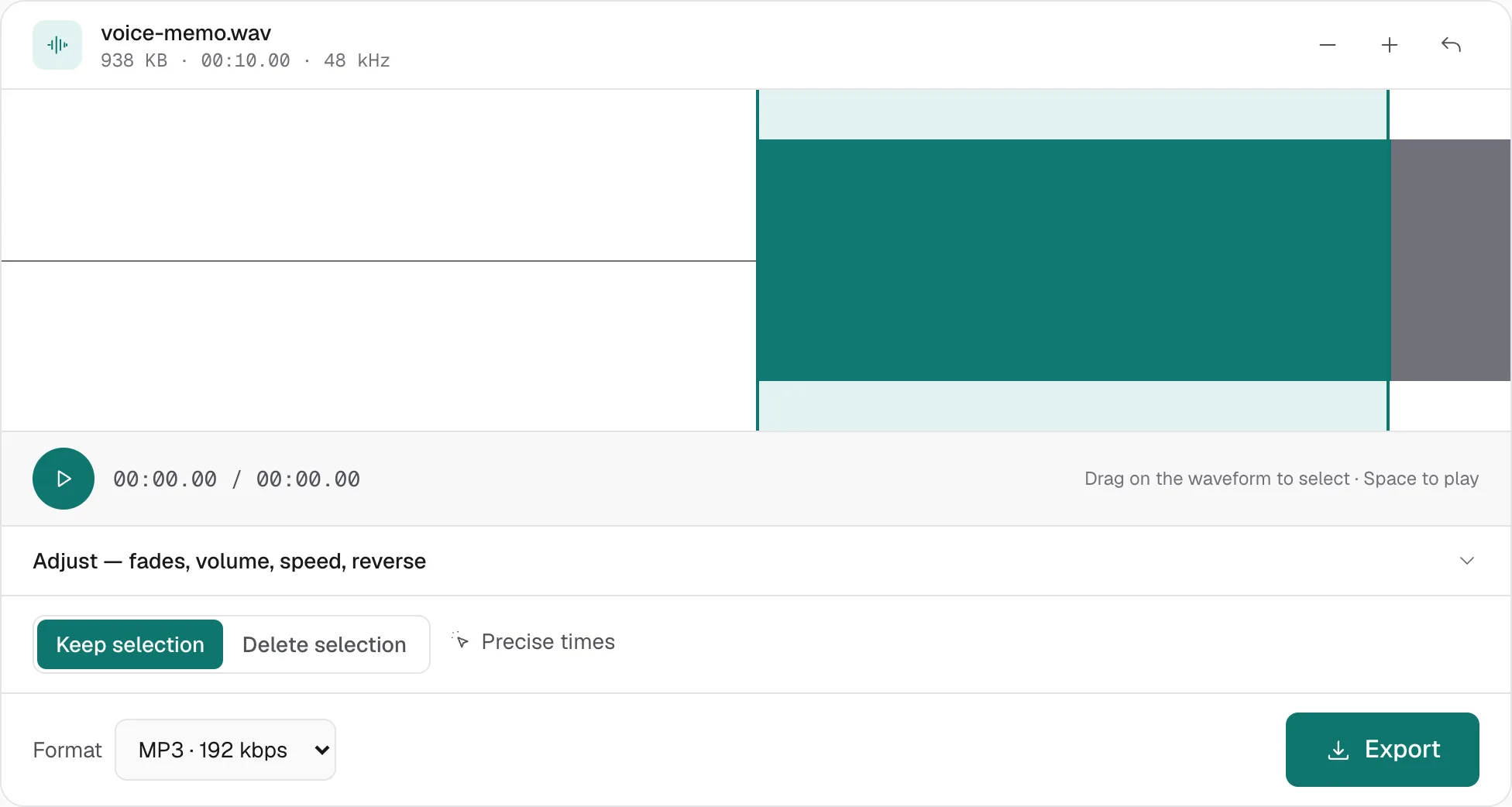
Keep the region, or delete a gap
Two modes, and they answer different sentences:
- Keep selection — the export is only the highlighted part. Use this to crop a voice memo down to the point, or to lift one answer out of a long recording.
- Delete selection — the export is everything except the highlighted part. Use this to remove silence at the start, or a pause in the middle. A middle delete keeps both sides and joins them with a hard cut.
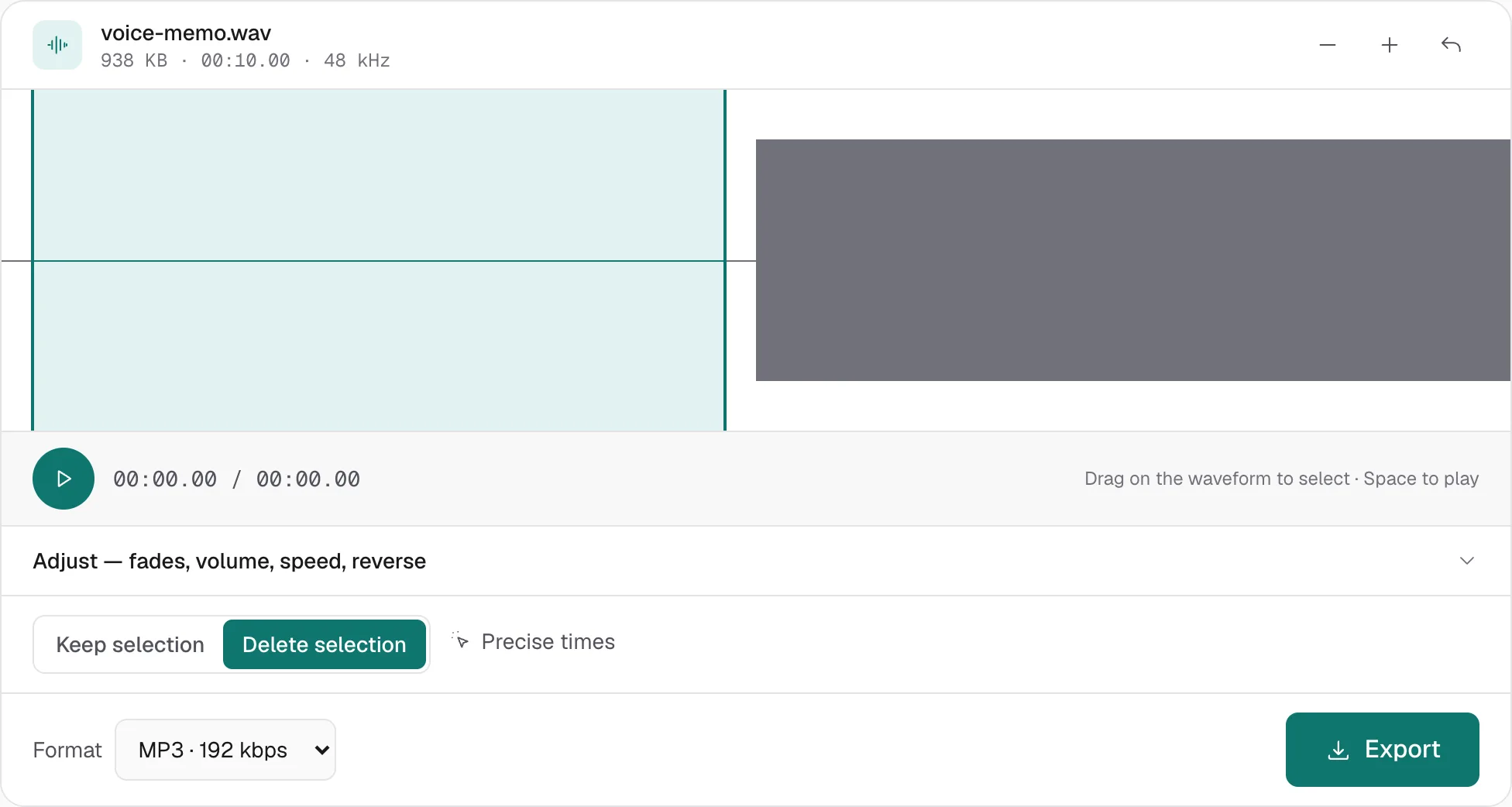
One export is one file. The trimmer does not split a recording into several downloads at once. If you need three separate clips, select and export them one at a time.
A fade in Adjust smooths the start and the end of what you export. It does not crossfade the point where two sides of a deleted gap meet. That join is a hard cut. If it clicks, export the two pieces separately and join them with a short crossfade in the audio joiner.
For a clean single region, a fade of 0.1–0.3 seconds is enough to stop the clip from starting or ending on a click. A song ending is a different decision; how to cut a song covers that.
Export
The trimmer defaults to MP3 192 kbps. Change it in the format menu before you click Export:
- MP3 128 kbps is enough for speech. Music starts to sound dull here.
- MP3 192 kbps is the right default for a mixed file you will send once.
- WAV is 16-bit PCM at the file’s own sample rate. Use it when you will edit again. Exporting MP3 from an MP3 throws away a little more each time.
The download starts in the browser. The original file on disk is unchanged.
On a phone
The same page works in mobile Safari and Chrome. The waveform accepts touch, and the export bar stays pinned to the bottom of the screen. A long recording is limited by the phone’s memory, not by an account cap. A modern laptop is comfortable around an hour. A phone is comfortable with less.
What trimming will not fix
Trimming removes time. It does not remove noise, separate a voice from music, or make a quiet take loud by itself. Volume in Adjust runs from 10% to 200%. A recording that is quiet all the way through wants the volume control, which goes to 400% with a limiter, or normalize, which raises the file until its loudest peak sits just under clipping.
If the next step is a song edit rather than a recording edit, switch to the MP3 cutter and follow how to cut a song. The wider map is how to edit an MP3 file.
More hands-on walkthroughs in all guides.