How to Edit an MP3 File in Your Browser
· Free Audio Editor Guides
Editing an MP3 usually means one job from a short list: cut a section, trim silence, fade an edge, make it louder, change the speed, or fix the title the player shows. Each of those already has a page. This one is the map, so the file is not decoded and re-encoded three times on the way there.
The MP3 editor is the general case. Drop the file, make the edit, export once. Your original stays on disk. The new file is the download.
Pick the job
| You want to… | Go here |
|---|---|
| Crop a voice memo or drop a stretch of silence | Trim audio |
| Keep a chorus, or delete one chunk of a song | Cut a song |
| Put several files in a row | Merge audio files |
| Move the key and keep the length | Change pitch without changing speed |
| Play it faster or slower, pitch included | Speed changer |
| Edit a WAV before you convert it | Edit a WAV file |
| Fix the title, artist or cover | MP3 tag editor |
| Decide this is really a desktop project | Audacity alternative |
If the job is two or three of the small ones — a cut, a fade, a bit of volume — do them in the MP3 editor and export once. Opening a new page for each slider means a new MP3 encode each time.
Edit in one pass
Drop the MP3 onto the editor. The waveform is the file, decoded in the tab.
Drag a region. Keep selection exports only that part. Delete selection exports everything else. Precise times takes a start and end in seconds when the drag is not exact enough.
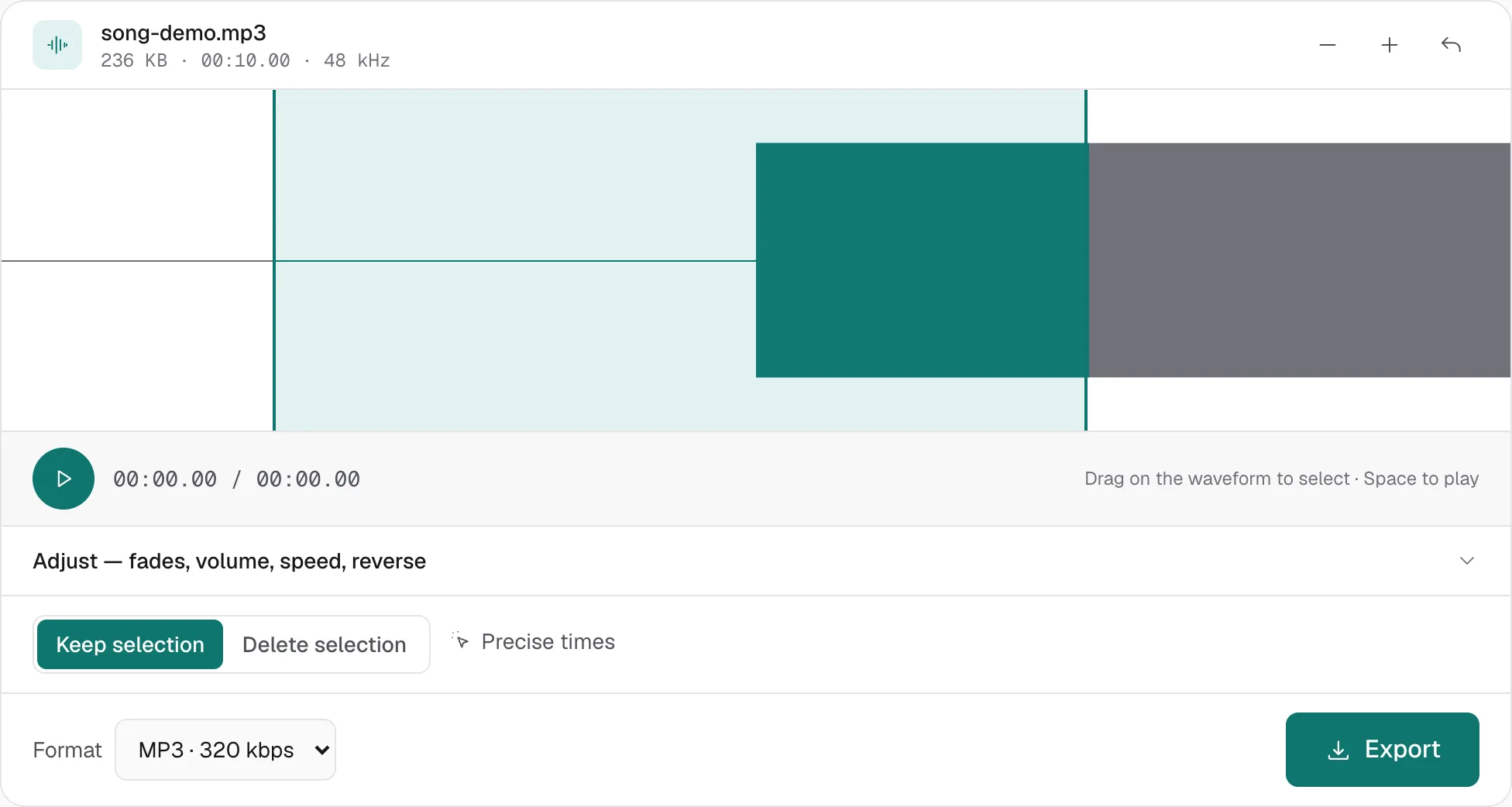
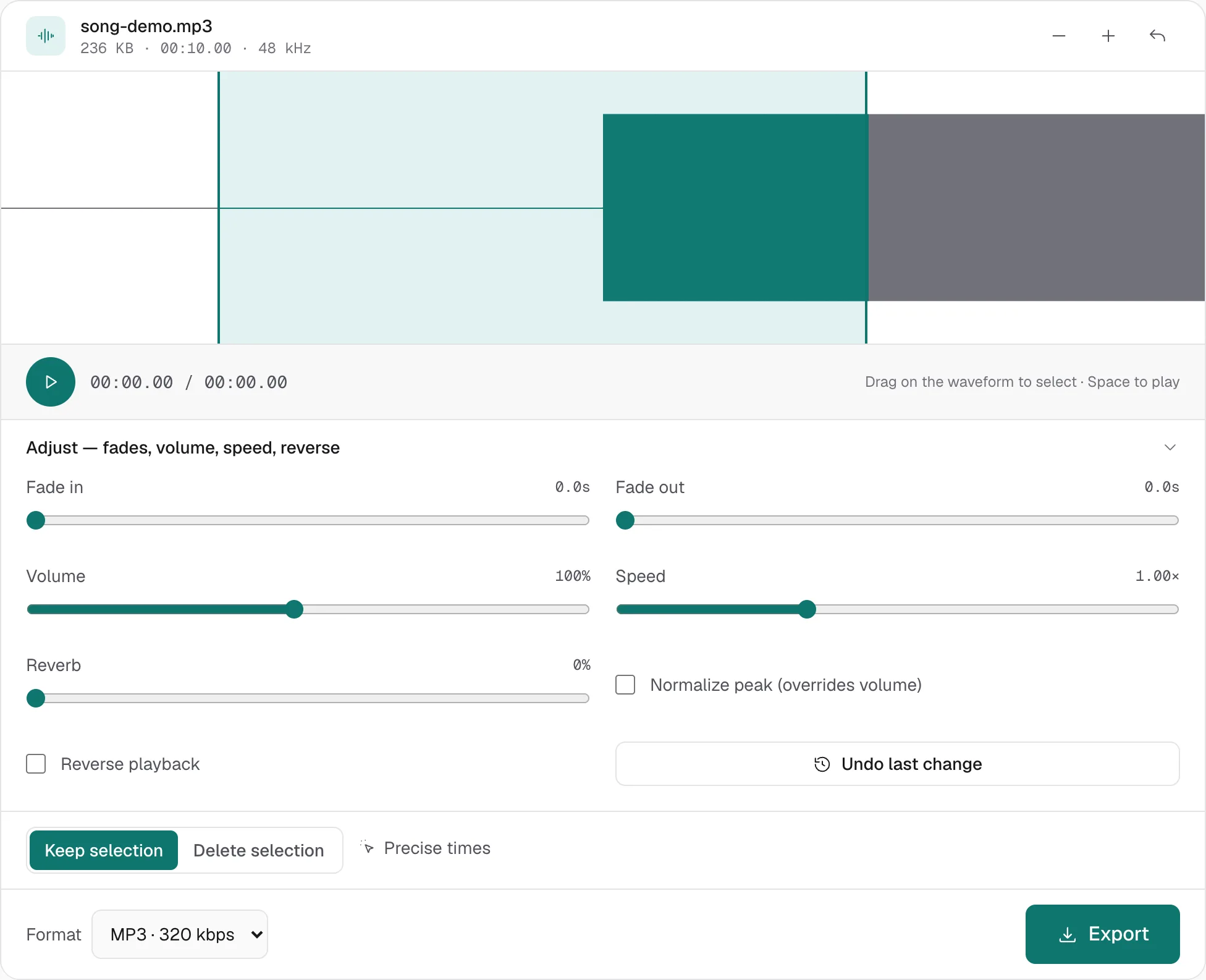
Open Adjust for the rest:
- Fade in and Fade out, up to 5 seconds. These shape the start and the end of the export. They do not crossfade a join in the middle of the file.
- Volume, from 10% to 200%. A limiter catches peaks when you go above 100%, so a modest lift stays cleaner than a hard clip. It will still sound strained if the file was already loud.
- Speed, from 0.5× to 2×. Pitch moves with it. This is not a time-stretch. To change the key and keep the length, use the pitch changer instead of this slider.
- Normalize peak raises the whole file by one amount, until the loudest sample sits just under clipping. It overrides the volume slider. It does not make the quiet parts as loud as the loud parts.
- Reverse flips the export end to end.
Press play on the selection before you export. Then pick the format.
MP3 320 kbps is the editor’s default, and the right choice when this export is the file you will keep. 192 kbps is enough to send. 128 kbps is for speech. WAV is the choice when this edit is not the last one.
Loudness, without guessing
A file that is quiet all the way through has two honest fixes, and they are not the same control.
Normalize measures the peak and applies the largest clean gain that still avoids clipping. Use it when you do not know how far to push.
Increase volume is a multiplier you choose, up to 400%, with a limiter on the peaks. The editor’s own volume slider stops at 200%. Use the dedicated page when 200% is not enough. Back off if the loud parts start to pump. Clean loud is better than maximum loud.
Neither one is loudness matching for streaming platforms. That is a longer average, measured in LUFS, and it belongs in a mastering session.
The sound and the label are separate
Cutting, fading and boosting decode the MP3 and write a new one. The title, artist, album and cover are not the sound. They live in a tag block, and the tag editor rewrites that block without touching the audio bytes. Do the sound edit first. Label the file you actually keep. Labeling first, then exporting a new MP3, drops the tags on the way out.
The tag editor is MP3 only. It does not batch an album, and it does not carry over unusual podcast-chapter fields.
What this editor will not do
It will not stack two tracks and mix them. The joiner places files end to end and can crossfade the overlap. It does not give you two faders at once.
It will not remove a vocal, print a noise profile, or split a song into stems. A browser page that promised those would be describing a different product. For a timeline, a repair, or a second track, the Audacity note is the honest split: stay there when the job is a project, and stay here when the job is one file and one export.
More hands-on walkthroughs in all guides.