Audacity Alternative — When a Browser Tool Is Enough
· Free Audio Editor Guides
People searching for an Audacity alternative usually want one of two things. Either they do not want to install a desktop app for a job that will take a minute, or Audacity is genuinely the wrong shape of tool for what they are about to do. Both are reasonable. Audacity is free, serious, and still the correct choice for a long list of jobs. It is also a poor fit for “cut this chorus and send it” when the person on the other end will not install anything.
This page is the honest split: when to stay in Audacity, when a browser tool wins, and which page on this site matches which task. Nothing here records, uploads or stores your audio. Stacking a few files you already have is the multi-track editor. MIDI, plugins, volume envelopes, and a project you reopen tomorrow still belong in Audacity.
When Audacity is still the right tool
Use Audacity when the work is a project, not a single action.
- A session, not a stack of files. A podcast with several mics, music, and level rides, or a song you will reopen tomorrow, needs a project. The multi-track editor stacks up to eight files you already have: level, pan, mute, solo, and where each one starts. It does not keep a project, draw envelopes, or load plugins. The joiner only places files end to end.
- Repair. Clicks, hum, a noisy room, a clipped syllable you want to redraw. Audacity’s noise reduction, click removal and spectrogram view exist for this. A volume slider does not.
- Plugins and a real edit history. VST effects, macros, labels, envelope points every few seconds, and a project file you reopen tomorrow. Browser tabs forget the moment you close them.
- Long sessions. A two-hour board recording, a field tape, anything you will mark up and export in pieces over an afternoon. Desktop apps are built for that attention span. A browser tab is built for one file in memory.
If that list describes the job, Audacity (or Reaper, or whatever you already know) is not something you should replace. The install is the cost of a tool that matches the work.
When the browser is the better tool
The other list is shorter, and it is most of what people actually do with audio in a week.
- The file should not be uploaded. Unreleased music, a voice memo, a client’s rough cut, a recording of your kid. Upload-based “online Audacity” sites take the file onto their server to process it. That is a different product.
- You are on a phone, a library computer, or a machine where you cannot install software.
- The task has one obvious output: a shorter file, a louder file, an MP3, a ringtone, two songs glued together.
- You will not reopen the session. There is no project. There is a download.
Those jobs do not get better because the waveform lives in a desktop window. They get worse, because the install, the export dialog, and the “where did it save” step are the whole task.
Task, then tool
| You want to… | Use |
|---|---|
| Trim the start and end of a voice memo or podcast | Audio trimmer |
| Keep one part of a song, or delete a chunk out of the middle | MP3 cutter |
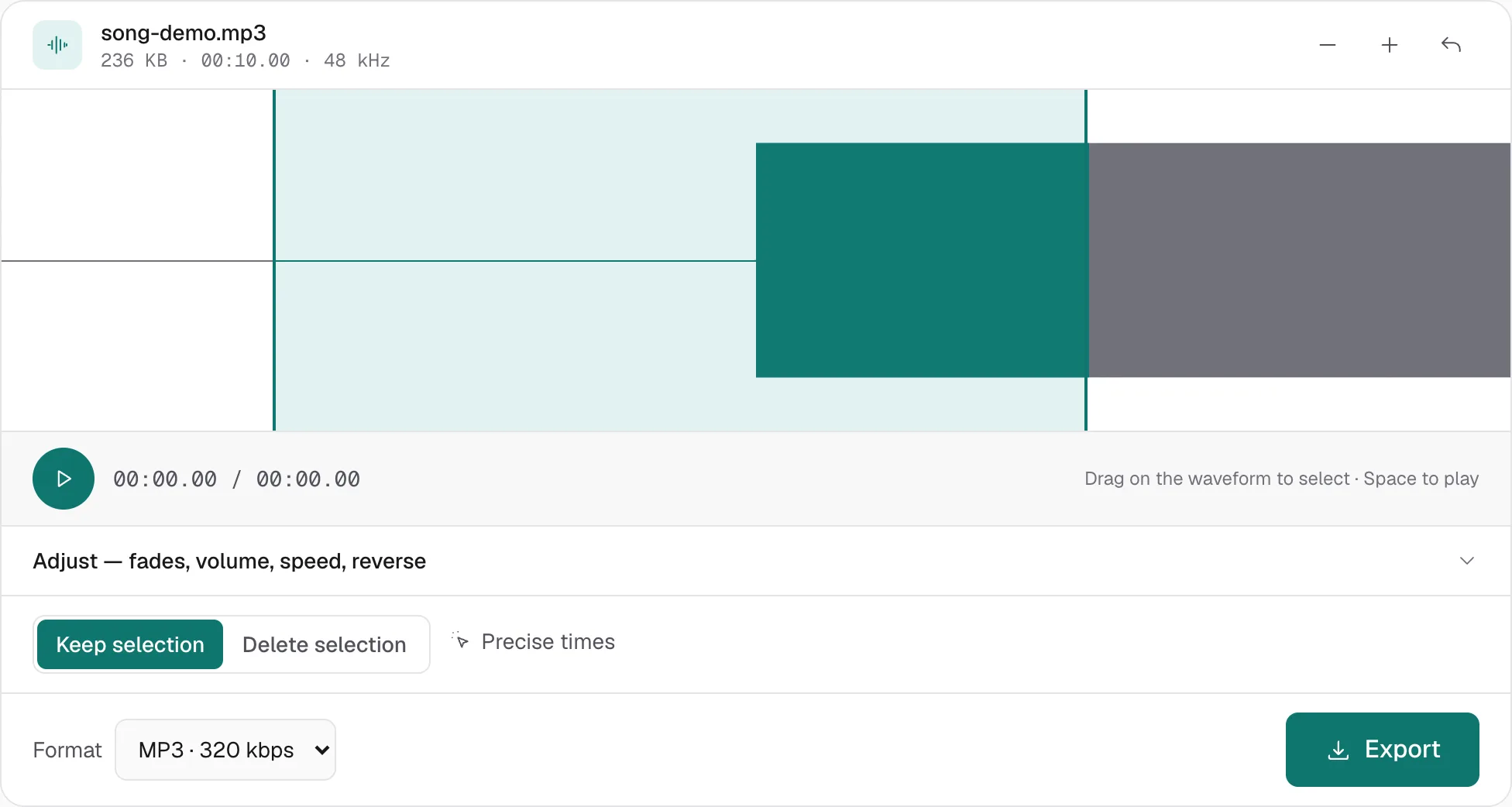
| Cut, fade, change volume and speed in one place | MP3 editor |
| Make a file for an iPhone ringtone | Ringtone maker |
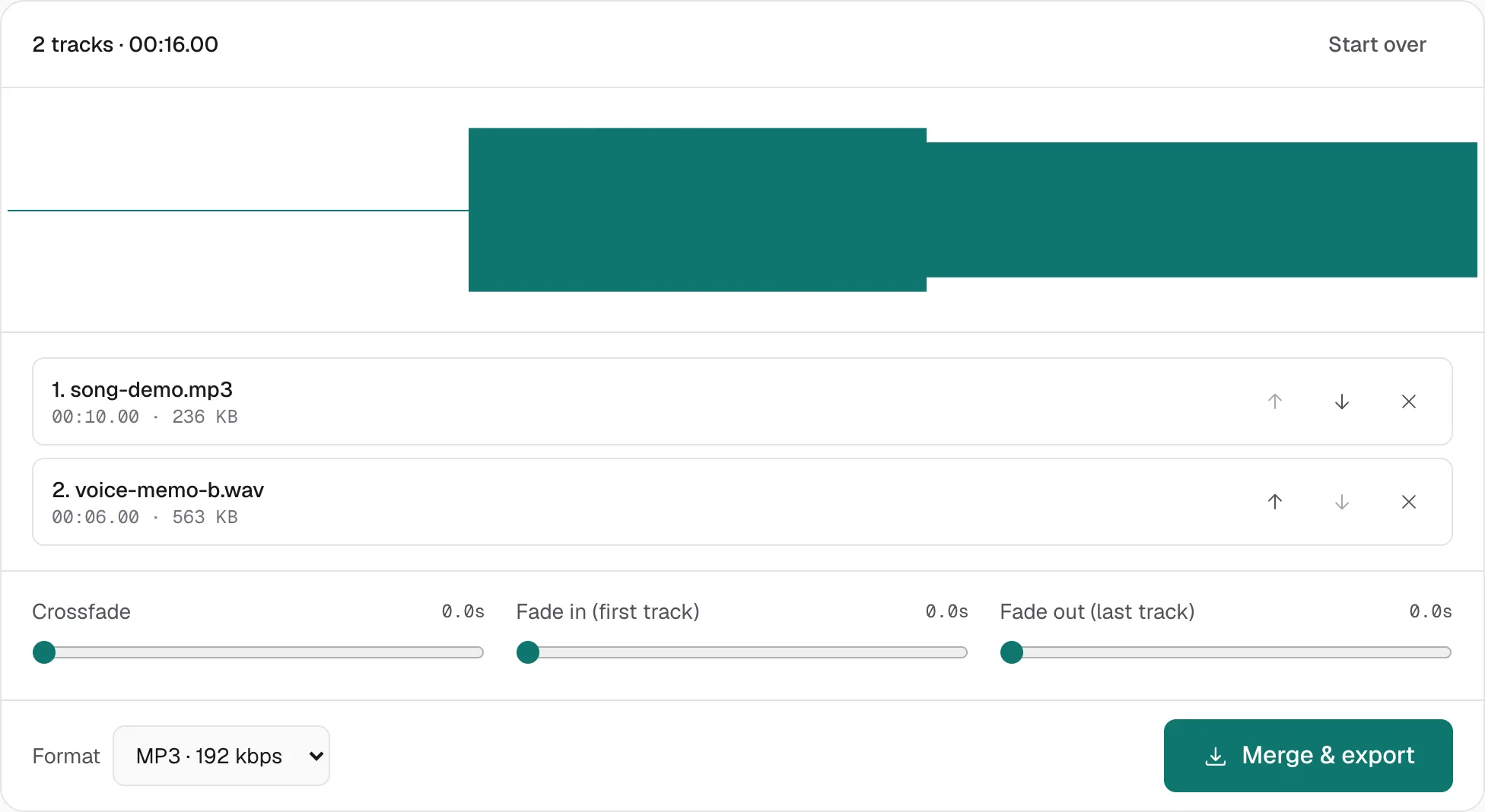
| Put several files in a row, with or without a crossfade | Audio joiner |
| Play several files at once — vocal on a beat, voice on music | Multi-track editor |
| Turn a WAV (or other lossless file) into an MP3 | WAV to MP3 |
| Play a track backwards | Reverse audio |
| Slow a song down or speed it up, pitch included | Change audio speed |
| Change the key and keep the length | Pitch changer |
| Make a slowed + reverb edit, or a nightcore edit | Slowed + reverb |
| Raise a uniformly quiet file to a safe peak | Audio normalizer |
| Push a quiet file louder by a chosen amount | Increase volume |
| Boost a video’s soundtrack the same way | Volume booster |
| Save a video’s soundtrack as MP3 | MP4 to MP3 |
| Save that soundtrack as WAV instead | Extract audio |
| Record the microphone, then trim the take | Voice recorder |
Each of those pages is the same engine with the controls and the copy pointed at one job. If you are not sure, the MP3 editor is the general case: selection, fades, volume, speed, reverse, then export. The MP3 editing guide maps those jobs, including trim, pitch and WAV.
What you give up
A browser tool that never uploads has a ceiling, and it is worth saying plainly.
One file in memory. Decoding, editing and encoding happen in the tab. A modern laptop handles an album track or a half-hour voice memo without drama. A feature-length file can run the tab out of memory. That is the point where Audacity, which streams from disk, is the more reliable machine.
Eight tracks, not a session. The multi-track editor plays files at the same time: level, pan, mute, solo, start, and trim, then one export. The joiner still only places files end to end. Neither one stores a project. Plugins, envelopes, and a mix you reopen tomorrow are still Audacity.
Effects are the short list. Reverse, speed (pitch moves with it — this is not time-stretch), a separate pitch shift that keeps the length, gain with a limiter, peak normalize, a 3-band EQ, high-pass and low-pass, and a single synthesized reverb. There is no noise print, no de-esser, no third-party plugin. Peak normalize raises the whole file by one amount so the loudest sample sits just under clipping. It does not make the quiet parts as loud as the loud parts. That second thing is compression, and it is the kind of processing that belongs in a desktop editor if you care about the result.
Lossy in, lossy out. Exporting MP3 from an MP3 re-encodes. For a ringtone or a chat attachment that is irrelevant. For a master you will edit again, export WAV. The quality loss is the encode, not the edit.
Some video soundtracks will not open. The browser decodes the formats it already knows: AAC in MP4, Opus in WebM, the audio in a typical MOV. AC3 and DTS, common on DVDs and some MKV files, fail. The page says so. ffmpeg on your own machine is the fallback, not a website that asks you to upload the film.
The session is the tab. Refresh and the file is gone, because it was never stored. That is the privacy property. It is also why this is a bad place to do work you expect to resume on Thursday.
A practical rule
Start in the browser when you can describe the output in one sentence. Move to Audacity when you start describing a timeline, a repair, or a second track. The two are not competitors so much as different sizes of the same job. Installing Audacity to delete four seconds of silence is the slow path. Uploading a client’s unreleased mix to a website that claims to be “Audacity online” is the wrong path. Cutting it locally in the tab is the path that matches the task.
If you already know the single thing you need, the table above is the whole guide. The MP3 editor is there when the job is “a few small changes, then a file I can send.”
More hands-on walkthroughs in all guides.