Convert OGG to MP3 in Your Browser (Nothing Uploaded)
· Free Audio Editor Guides
Converting OGG to MP3 means taking the audio out of an OGG container and saving it as a file that plays in a car, a phone, or an old speaker. The usual online converter does that by uploading the file. A lecture, a voice memo, or an unreleased track does not need to leave your computer. The browser you already have can decode OGG and encode MP3 on its own.
What an OGG file actually is
OGG is a container, not a single codec. Open one and you will find one of two things inside:
- Vorbis, the codec most music files labeled
.ogguse. - Opus, the codec in some newer voice recordings and a few music downloads.
The extension does not tell you which. Chrome and Firefox play both. Safari plays Opus and often stays silent on Vorbis. That limit is the browser’s decoder, and a page that refuses to upload cannot invent a decoder the browser does not have.
A file named .opus is a different job. Use the
Opus to MP3 converter for that. This page is for .ogg and
.oga.
Do the conversion
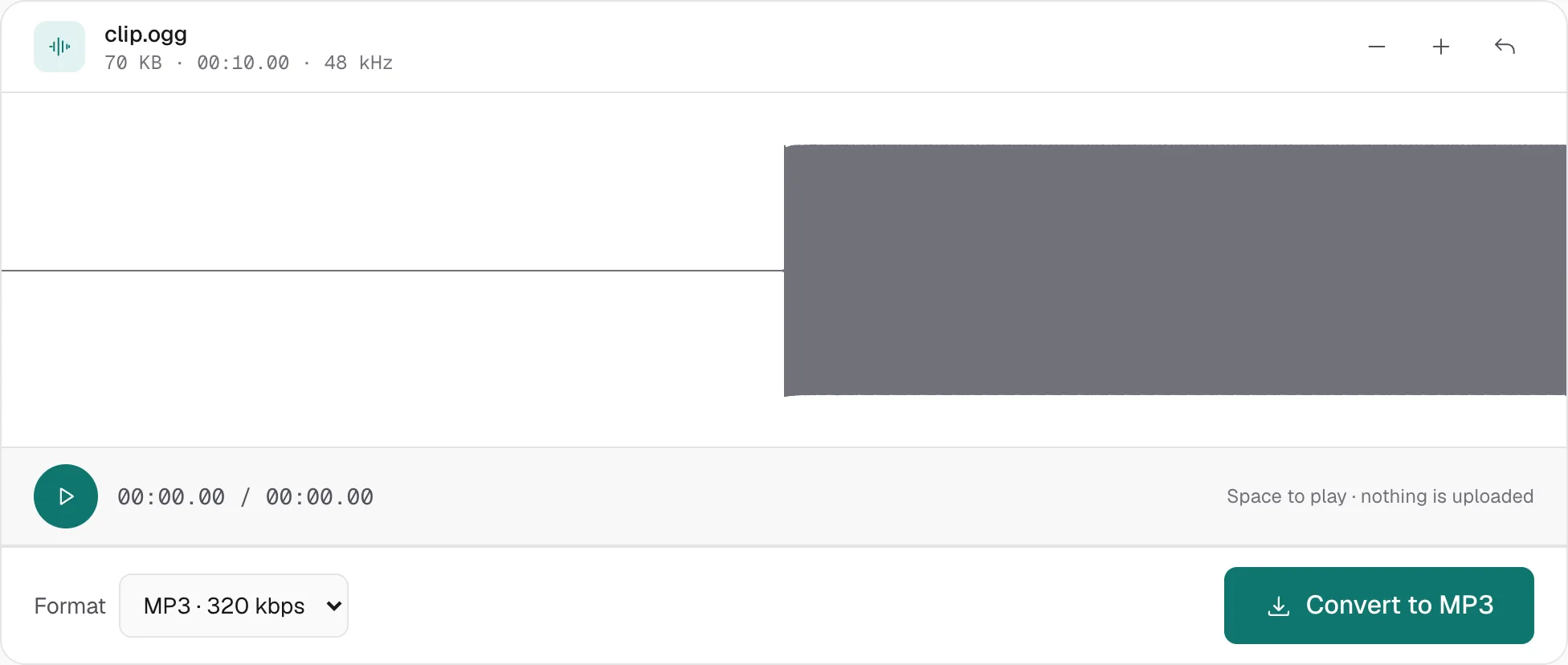
- Open the OGG to MP3 converter.
- Drop the file, or click to browse.
- Pick a bitrate (below) and export. The MP3 downloads to your device. The OGG stays where it was.

Which bitrate
The three rates cover real use. Past what you can hear, a bigger number only makes a bigger file.
- 128 kbps is the right rate for speech: a voice memo, a meeting, a lecture someone exported as OGG. Music at 128 kbps is listenable and slightly dull.
- 192 kbps is the sensible middle for music you will actually listen to.
- 320 kbps is the top of MP3. Use it when the OGG is a clean recording and you want the smallest compromise. It is still lossy. If the next step is more editing, export WAV from another tool and encode MP3 once, at the end.
Vorbis and Opus were already lossy. Converting them cannot put back detail the original encode threw away. 320 kbps only describes the MP3.
When the browser cannot decode it
Try playing the file in a plain browser tab first. If you hear it, this conversion will work. If the tab is silent:
- Vorbis in Safari. Switch to Chrome or Firefox, or convert on a computer that has one of those.
- A damaged file, or an OGG that is not audio. This page does not extract a video soundtrack from an unusual container. For MP4, WebM and MOV, use the MP4 to MP3 converter.
There is no honest “every OGG” claim available to a page that will not upload the file. For the files the browser refuses, ffmpeg on your own computer keeps the same privacy property and adds the missing decoder.
After you have the MP3
The result is a normal audio file.
- Cut a section with the MP3 cutter.
- If the whole thing was recorded quietly, normalize it so the peak sits just under clipping.
Tags and cover art are not copied. The MP3 is written without metadata. Add them back afterwards in any tag editor if you need them.
More hands-on walkthroughs in all guides.