How to Edit MP3 Tags: Title, Artist, Album, Cover
By Free Audio Editor · · How we test
Every player that matters reads tags, not filenames — so an MP3 that shows up as “Track 01” by “Unknown artist” on a car stereo or a phone is a metadata problem, not an audio one. The fix is editing the ID3 block that rides inside the file: title, artist, album, year, track number, cover art. The MP3 tag editor does it in the browser — the tags are read and written on your device, and the audio itself is copied byte for byte. This page covers what tags are, the browser route, the desktop taggers, and the mistakes that make a tagged library worse.
What the tags actually are
ID3 is a small container of labeled frames stored with the MP3 stream: one frame for the title, one for the artist, one for the year, one for the embedded cover image, and so on. The original version squeezed everything into 128 bytes at the end of the file; the modern ID3v2 sits in front of the audio and carries art, long titles, and many more frames. The official ID3 site specifies the frames players expect. Players read this card when they build a library — which is why renaming a file rarely changes what a player shows, and retagging it always does.
The browser route
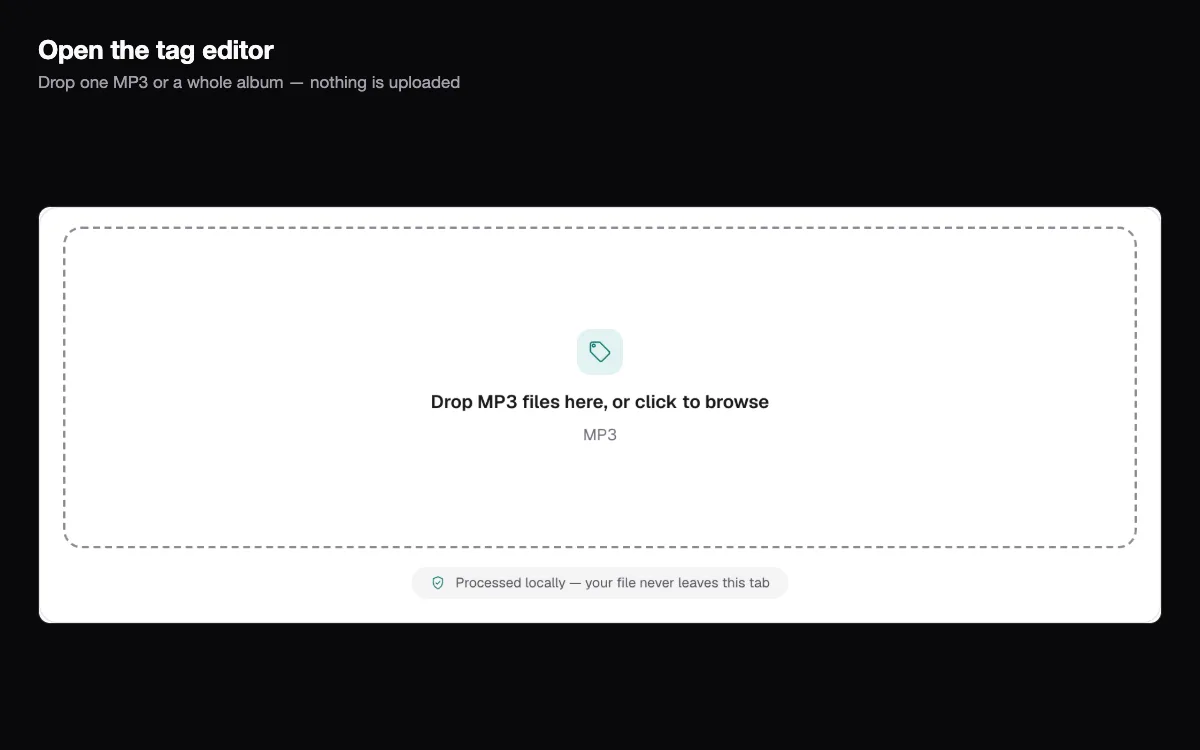
- Open the MP3 tag editor and drop one MP3 — or a whole album’s worth. The current tags and cover art are read on your device and filled into the form. Nothing is uploaded.
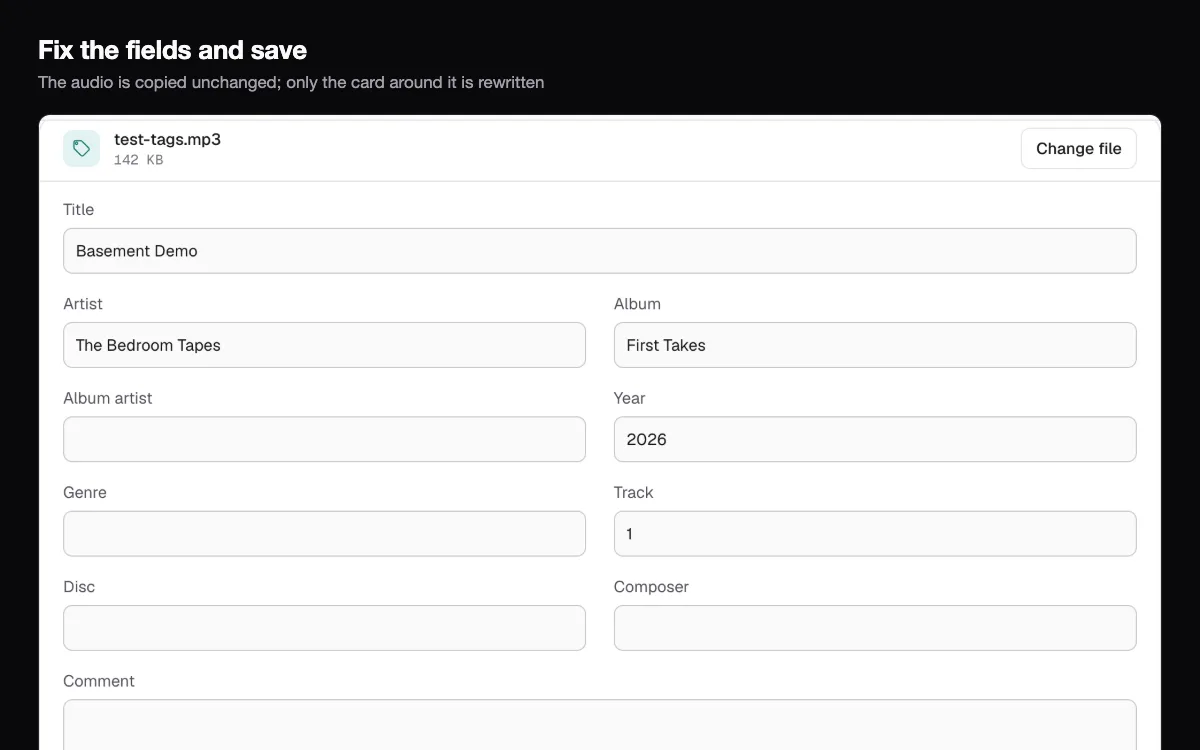
- Fix the fields: title, artist, album, year, track number. Loading several files is the point — artist, album, year, genre, and cover apply to every loaded file at once, while title and track number stay on each one, because those are the two that differ per song.
- Drop in a JPG or PNG for the cover art. It replaces what is there; pick something around 1000×1000 pixels rather than the full-size photo.
- Press Save MP3. The tagged file downloads; with two or more loaded, they come back as one ZIP.
The honest scope: this edits MP3 files. FLAC, M4A, and other containers keep their metadata in different structures and are a job for a desktop tagger.
Which fields matter to which player
Every player reads the basics — title, artist, album, track — but the long tail differs. Car head units and older boomboxes lean on artist and album for their folder-style browsing, so a compilation with ten different artists needs the album field consistent even when the artist field is not. Phone players group compilations by the album-artist idea behind the scenes, which is why the batch artist field is separate from the batch album field here. Podcast apps ignore the tags entirely — they read the feed — so tagging an episode MP3 matters for direct downloads, not for the RSS copy. And DJ software reads specialist frames like BPM and musical key that simple forms leave out; that is desktop-tagger territory, not a browser form.
Desktop taggers
Two routes cover the rest. The Music app on a Mac (iTunes on Windows) edits tags through the song’s info panel, which is fine for one album you already have in the library. Mp3tag on Windows is the power tool: batch actions across thousands of files, filename-to-tag conversions, and custom frames like composer and disc number that the simple forms leave out. If a library is a mess, an hour in Mp3tag fixes it for good; if it is one EP before tonight’s upload, the browser route is faster.
Common mistakes
- Re-encoding to fix tags. A tag edit copies the audio stream unchanged — tags live beside the audio, not in it. Anyone who “fixed” tags by re-exporting the file through an editor spent a lossy generation for nothing.
- Renaming files instead of tagging. The filename is for you; the tags are for every player, car unit, and streaming setup the file will meet. Do both, but the tags are the part that shows up in a library.
- Cover art the size of a wallpaper. Every MP3 carries its own copy of the image, so a 6 MB photo adds 6 MB to every single file on the album. Around 1000×1000 JPEG looks right everywhere.
- Batch-editing the title. Shared fields are shared on purpose — until the album ends up with ten songs all titled like the lead single. Check the per-file list before saving.
- Old car head units. Some only read the ancient 128-byte ID3v1 block. If a retro unit shows garbage, write ID3v2.3, the compatibility choice most taggers offer.
Where tagging fits in the workflow
Tagging is the last step, after the audio is final: cut the file first with how to edit an MP3, then tag the export so the finished file carries the right card. If the track is becoming a ringtone, tag it before the conversion and follow how to make an iPhone ringtone. The MP3 tag editor keeps a folder of demos honest in the time it takes to type the band name once.
Sources
More hands-on walkthroughs in all guides.