How to Trim OpenTracks BGM in the Browser
By Free Audio Editor · · How we test
OpenTracks, formerly DOVA-SYNDROME, publishes free background music. The download is an MP3. A video usually needs less than the full track: the intro cut off, a loop that matches the picture, or a fade so the end does not stop cold. The audio trimmer does the cut in the browser, and the file stays on your device.
Their license already allows that edit. Cutting the intro, taking the part you need, making a loop, and converting MP3 to WAV or OGG are listed as ordinary processing. Credit is optional. This page is the edit. It does not host their music.
Download the file
Open the track page and use the green download button. A screen that says “Click here to continue” is an ad from an outside network, not their download.
The old address dova-s.jp still opens the same track. It redirects to opentracks.com. A credit that already says DOVA-SYNDROME can stay as it is.
Some tracks have a short version or a loop version, labeled Track2 or Track3. If the page says the track has another version, download that one before you start cutting.
Trim it
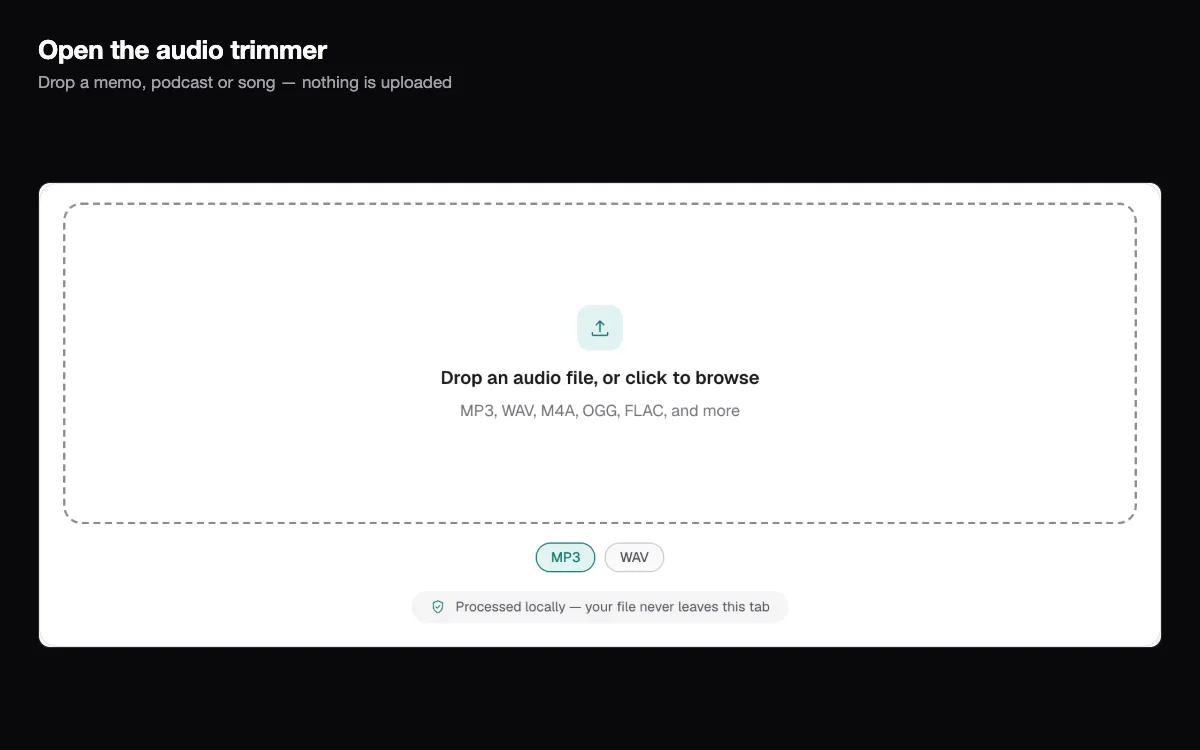
Open the audio trimmer. Drop the MP3 on the page. The waveform is drawn in the tab. The file is not uploaded.
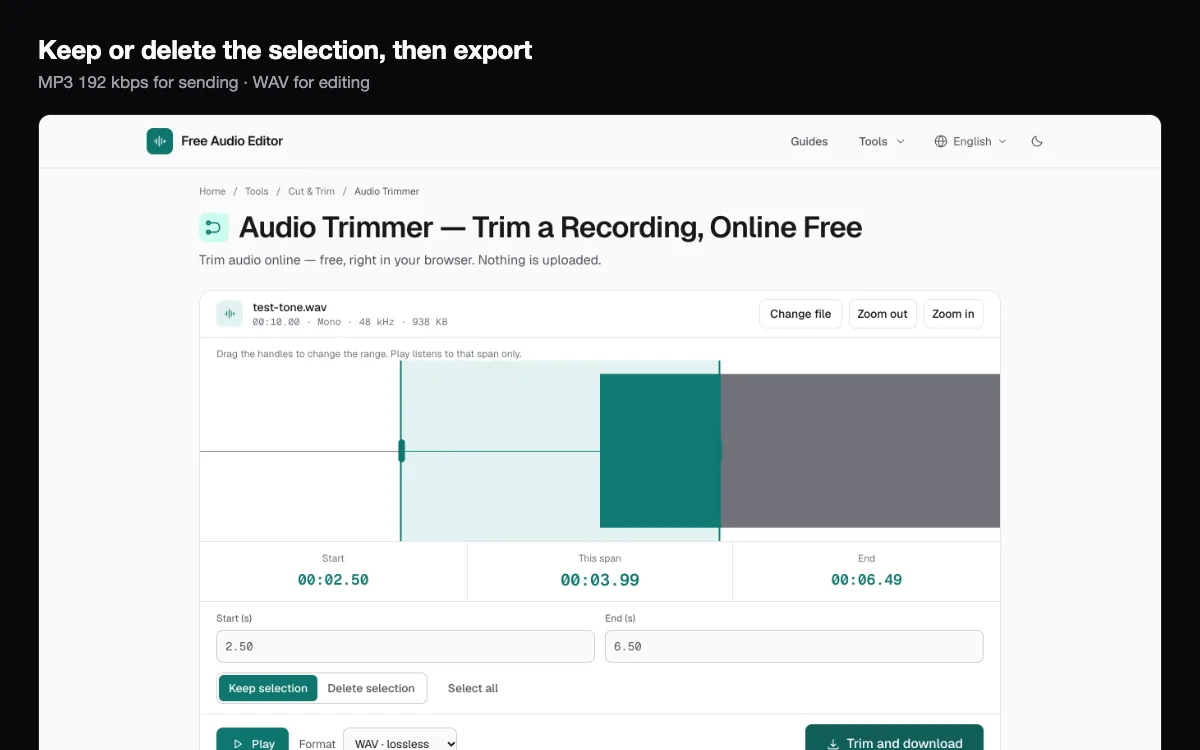
Drag the region you want to keep. Press play and listen to the selection. If the drag is coarse, open Precise times and type the start and end in seconds.
Keep selection exports only the highlighted part. Use it to drop a long intro, or to lift the section that fits the video.
Delete selection exports everything except the highlight. Use it to remove a gap in the middle. The join is a hard cut. If that click is obvious, export the two sides separately and join them in the audio joiner with a short crossfade.
A fade of 0.1–0.3 seconds in Adjust keeps the start and the end from clicking. The fade applies to the export, not to a deleted gap. Remove clicks after trimming audio is that edge. A click in the middle of the take is a different fault, and this fade does not reach it.
Loop a short section
A background bed often needs the same few bars more than once. Select that span in the audio looper. It repeats the selection from 2 to 16 times, with a short crossfade at each join. The export stops at 10 minutes.
Convert the format
OpenTracks says converting the file is fine, for example MP3 to WAV or OGG. Use MP3 to WAV when you will edit again. WAV is 16-bit PCM at the file’s own sample rate. Export MP3 at 192 kbps when the next stop is a video editor. 128 kbps is thin for music.
Each export is a new download. The MP3 you saved from OpenTracks stays on disk.
Credit
A credit is optional, including the link. If you add one, point it at the track page you downloaded, and name the composer.
Read the audio source license before you use a track, and follow any extra conditions the composer set on that page. Putting their tracks inside another tool, so other people can pick a track and export a video, needs their permission first. This editor does not do that.
When the export is on disk, it drops into a video editor like any MP3. If a section turns out too short after all, cut a second one from the same original: the file you downloaded has not changed.
Sources
More hands-on walkthroughs in all guides.