Why Your Audio Clip Clicks at the Start
By Free Audio Editor · · How we test
The clip plays fine and then, on close inspection of the first tenth of a second, there it is: a tick, like a tiny knock before the music starts. The same defect can sit on the last sample instead. Nothing is corrupted. The clip begins in the middle of a sound wave, and the speaker has to jump from silence to whatever level the first sample carries. That jump is the click. The fade tool removes it with a 0.1-second ramp, and this page explains where the jump came from and how to cut so it never happens.
The two-second fix
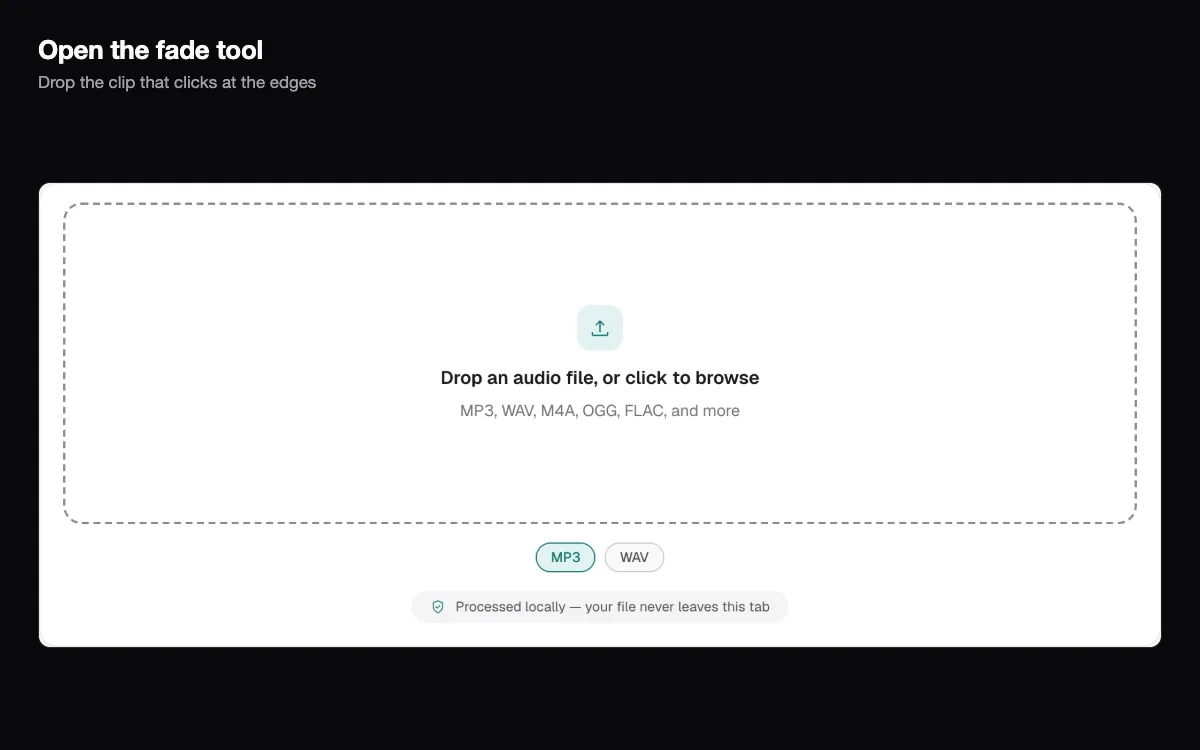
- Open the fade tool and drop the clip.
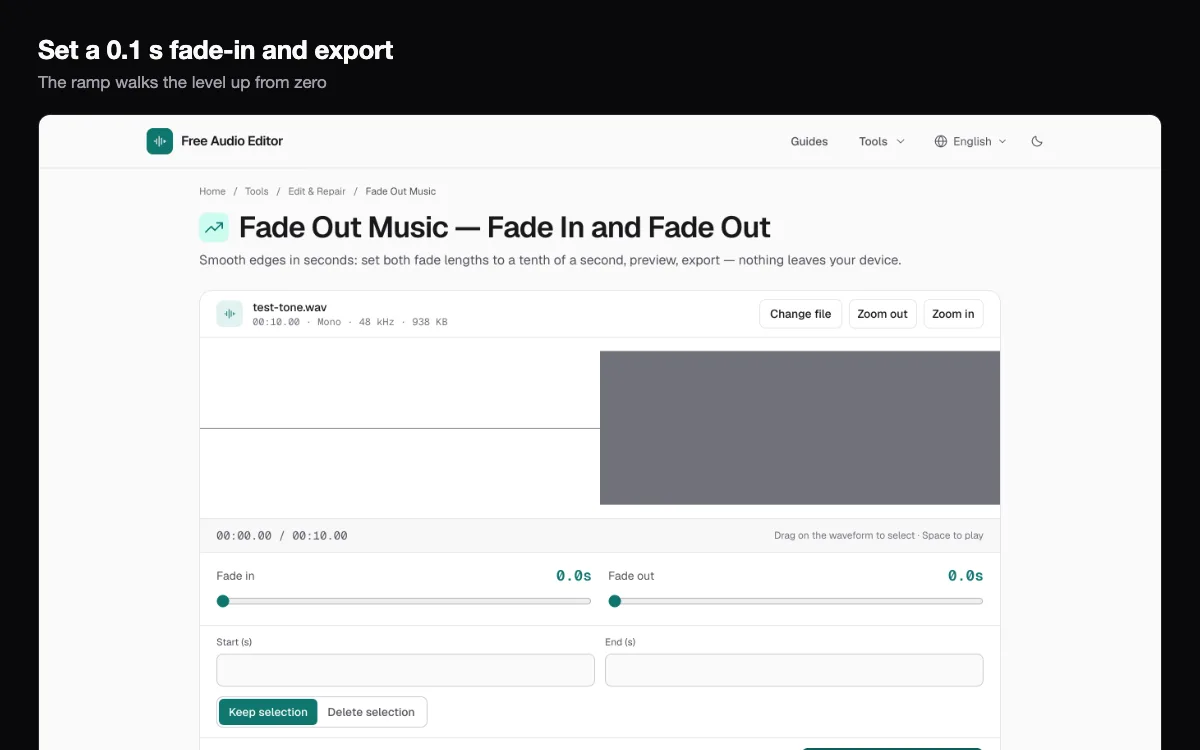
- Set a fade-in of 0.1 to 0.3 seconds. The ramp walks the level up from zero, and the jump disappears.
- If the end ticks too, set a matching fade-out and export. MP3 for sending, WAV to verify the waveform honestly.
One export is enough to confirm the diagnosis. If the click survives a 0.3-second fade-in, the problem is not the start of the file, and the next section is about the other places it hides.
Why the click is there
A cut lands where you dragged, and the odds of that drag landing exactly on a zero crossing are tiny. Start the export mid-wave and the first sample carries the level of the middle of a cycle; the speaker cone snaps there from rest. The audible result is a tick that costs nothing further, but announces the edit.
The same mechanism explains clicks in two other places:
- A deleted section joins two edges that do not match. The end of one part and the start of the next meet with a level jump between them. A short fade softens the edge but cannot marry the two sides; that is a crossfade’s job.
- A loop point. The end of the clip does not flow into its own beginning. The audio looper puts a 0.01-second crossfade at each join for exactly this reason.
Clicks that are not edit artifacts
A click through the whole file, not at an edge, has a different list of suspects: a download that did not finish, a damaged file, or a player issue. Re-download and test the file in another player before editing anything. An editor cannot repair samples that are already wrong; it can only stop you adding new clicks to them.
A click that was in the recording
If the tick sits in the source file itself, on a vinyl rip or under a mic bump, no edge fade will reach it, and honesty requires saying what this page cannot do: declicking inside the audio is spectral or sample-level repair, which is desktop work. Audacity’s click removal is the free route. What the fade does fix, reliably and forever, is any click that your own edit put at the start, the end, or the join.
Three edges, three checks, in the order a listener meets them:
- The first sample. Fade-in, 0.1 seconds.
- The last sample. Fade-out, 0.2 to 0.5 seconds; tails ring longer than people expect. A musical fade-out of several seconds is a different job: how to fade out a song.
- The join. Where a deleted section used to be, a crossfade in the audio joiner beats a fade on each side.
Cutting so the click never starts
Prevention is one drag with intent. Leave about a tenth of a second of quiet before the first word or beat, and place the cut in a pause rather than on a note. The precise times control makes that exact instead of hopeful. For music, cut just after a beat rather than just before it, and the export starts on a settled waveform.
Keep the click-repair mindset in this order: cut in pauses first, fade the edges second, crossfade joins third. Each step fixes what the last cannot, and none of them costs more than a tenth of a second of audio.
Sources
More hands-on walkthroughs in all guides.