How to Fade Out a Song, at the End or Earlier
By Free Audio Editor · · How we test
To fade out a song, open it in the fade tool, type the second where the song should stop into End (s), and move Fade out to the length you want. Then press Fade and download. The exported file stops at your end point, and its last seconds ramp down to silence. The song never leaves your browser.
The fade can run from 0 to 5 seconds, in 0.1-second steps. That covers a clean ending for a clip, a video, or a ringtone. A slow radio-style fade of 10 seconds or more needs a different tool, covered below.
What you need
- The song file. WAV was the format checked for this guide. The fade page lists MP3, M4A, OGG and FLAC as well.
- A desktop browser.
- The second where you want the song to end. Note it while you listen, for example 2:48 is 168 seconds.
Step 1: Open the song
Drop the file on the fade tool, or click the drop zone to browse for it. The waveform appears with the file name, length and channel count above it. Nothing is uploaded.
Step 2: Choose where the song ends
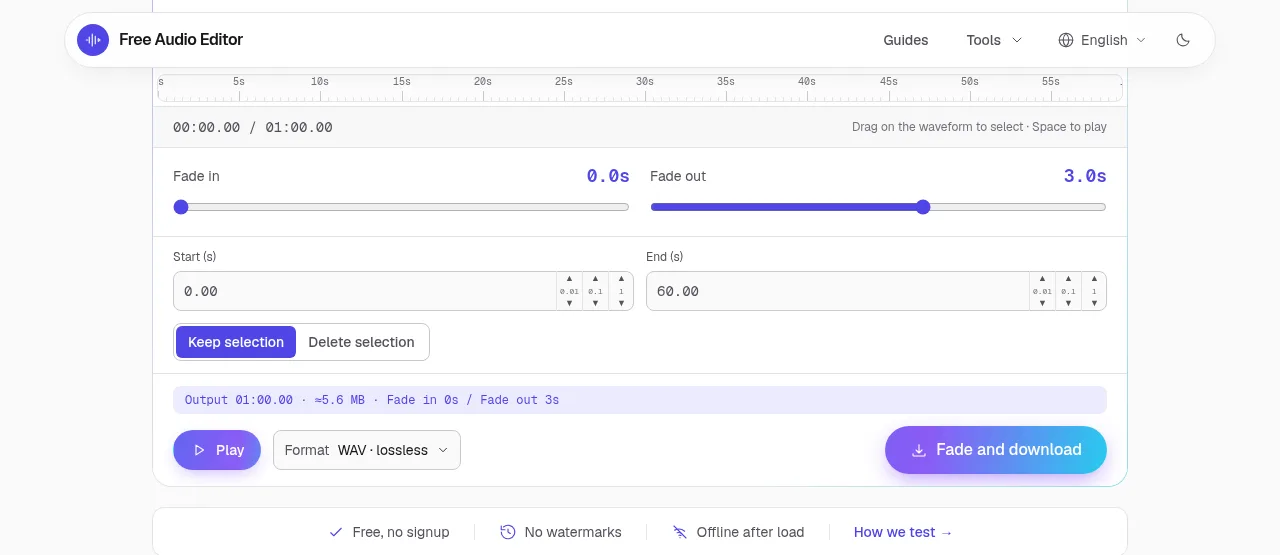
If the song should fade at its real ending, leave the selection as it is. The whole file is selected after it loads.
If the song should end earlier, set the end point:
- Type the time in seconds into End (s). The arrows beside the field nudge it by 0.01, 0.1 or 1 second.
- Or drag the right handle on the waveform.
Leave Keep selection on, which is the default. Everything after End (s) is then left out of the export. Delete selection does the opposite and keeps everything except the span. Start (s) works like End (s) if you also want to drop an intro.
Press Play before you export.
Pick an end point a beat or two after a phrase finishes. A fade that starts in the middle of a sung word sounds like a mistake, not an ending. If you know where the bars fall, end on a downbeat, then let the fade carry the last chord.
Step 3: Set the fade-out length
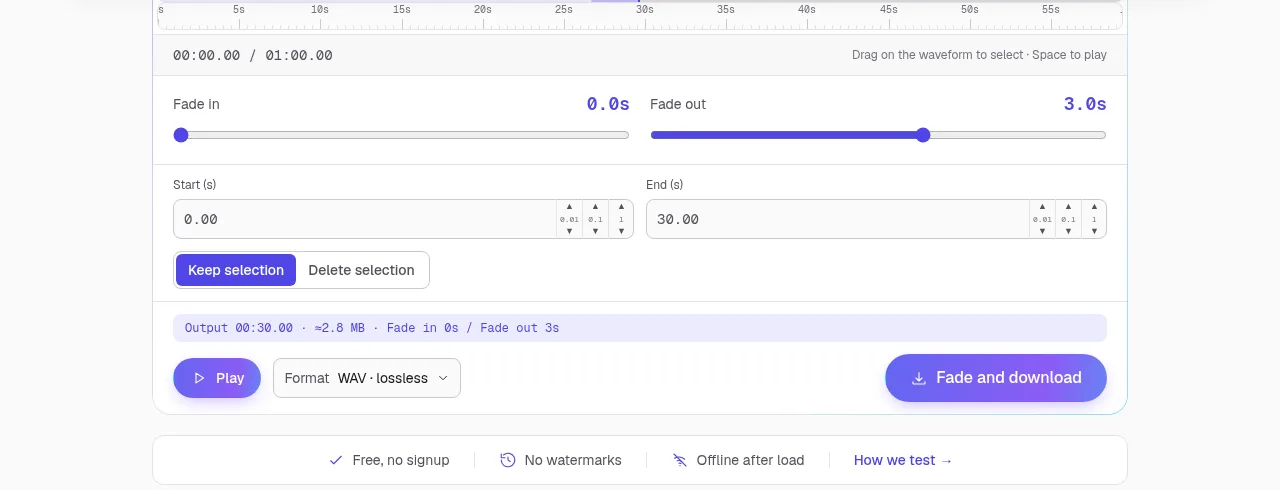
Move the Fade out slider. The number beside it shows the length, for example 3.0s. Use the arrow keys on a focused slider to move it in 0.1-second steps.
Check the line above the export button. It summarizes the export, for example
Output 00:30.00 · ≈1.2 MB · Fade in 0s / Fade out 3s. The output length is
the span you kept. The fade happens inside that span and does not add time.
Step 4: Pick a format and export
Open Format and choose one:
- MP3 · 320 kbps is the default. Use it for sharing and listening.
- WAV · lossless keeps every sample of the fade. Use it if the file goes into a video editor or another edit.
Press Fade and download. The status line confirms the file name, for
example Exported my-song-edited.wav. The original file on your device is
not changed. Play the new file once from start to finish before you delete
anything.
How long should a fade-out be?
There is no standard length. Pick by what the audio is for, then trust what you hear.
| Use | Fade out | Why |
|---|---|---|
| Song ending early, for a video or a slideshow | 3 to 5 s | Long enough to sound intended |
| Short clip or ringtone | 0.5 to 2 s | Keeps the clip short and stops a hard cut |
| Loop that repeats | 0.2 to 0.5 s | Longer fades leave a dip on every repeat |
| Radio-style song fade | Often 8 s or more | Needs a tool past 5 s |
One detail changes how long a fade feels. In our test of the fade tool, the level fell in a straight line. One second before the end, a steady tone was already about 10 dB quieter. Half a second before the end, it was about 16 dB quieter. Most of what you hear as “fading” happens near the end, so a fade on music often needs to be longer than you expect. If 2 seconds sounds abrupt, try the full 5.
When 5 seconds is not enough
The fade tool stops at 5 seconds. For a longer fade, use one of these.
-
Audacity (free desktop app). Select the last part of the song and apply Effect > Fade Out. Its Adjustable Fade effect also has curve presets. See the Audacity manual.
-
ffmpeg (command line). This command keeps the first 180 seconds and fades out the last 10:
ffmpeg -i song.mp3 -af "afade=t=out:st=170:d=10" -t 180 song-faded.mp3stis where the fade starts,dis its length, and-tis where the file ends. The afade documentation lists other curve types. -
Our local MCP server. If you work in Claude or Cursor, the audio MCP server runs ffmpeg on your own computer and fades up to 30 seconds on each end. It is made by the same team as this site.
Fixing common problems
The export ends abruptly. Fade out was still at 0.0s. Check that the
summary line shows Fade out with the length you chose.
The fade starts too early or too late. The fade always ends at End (s). To start it later, move the end point later or shorten the fade.
The start of the file clicks. That is a different problem. A short fade-in often fixes it, and audio clicks at the start explains why.
You want one song to fade into the next. That is a crossfade, and it needs two files. Use the audio joiner. What is crossfade explains how long the overlap should be.
You also need to cut out a middle section. Do the cut first in the MP3 cutter, which has the same Fade in and Fade out sliders. How to cut a song covers choosing the part to keep.
The MP3 sounds slightly different. MP3 export encodes the audio once. If the file will be edited again, export WAV, then convert at the very end.
Which tool to use
| You want to | Use |
|---|---|
| Fade the end, or end early, up to 5 s | Fade tool |
| Cut a section, then fade the new edges | MP3 cutter |
| Blend two songs together | Audio joiner |
| Fade longer than 5 s, or pick a curve | Audacity or ffmpeg |
Sources
More hands-on walkthroughs in all guides.