Why Is My Voice Memo So Quiet? Make It Louder in Safari
By Free Audio Editor · · Updated · How we test
The recording is there, the words are clear if you hold the phone to your ear, and the level is hopeless in any room with a refrigerator. Quiet voice memos are the most common phone-audio complaint, and the fix depends on one question: is the whole memo equally quiet, or are some words loud and others gone? The first case is a volume job, and the MP3 volume booster is built for it. The second case needs a different page, and this one will point you there.
Can Voice Memos make a quiet recording louder?
No. Voice Memos can trim, replace, and delete a recording, but it has no volume control for the saved file. The Enhance Recording switch sits next to playback speed and Skip Silence in the player, and it behaves like its neighbors: it cleans up noise and evens the level while this iPhone plays the memo. The file itself is untouched. The copy you share to a chat, attach to an email, or AirDrop to a laptop arrives at the original quiet level, and anyone playing it on a speaker hears exactly what you heard before the enhancement.
What a quiet memo needs is a gain change on the file itself. That does not take an App Store visit: the memo is an .m4a file, and a browser tool can raise its level in about two minutes.
The two-minute fix (iPhone, no app install)
Everything below happens in Safari with the software already on the phone. The file is decoded and processed on the device — nothing is uploaded, and once the tool page has loaded it keeps working offline. The site’s privacy page spells out what stays local.
1. Save the memo to Files
In Voice Memos, tap the memo, tap Share — the square-with-arrow, under ⋯ on newer iOS — and choose Save to Files. Pick On My iPhone or iCloud Drive and remember which. The memo is now an .m4a file that Safari can reach.
2. Boost it in Safari
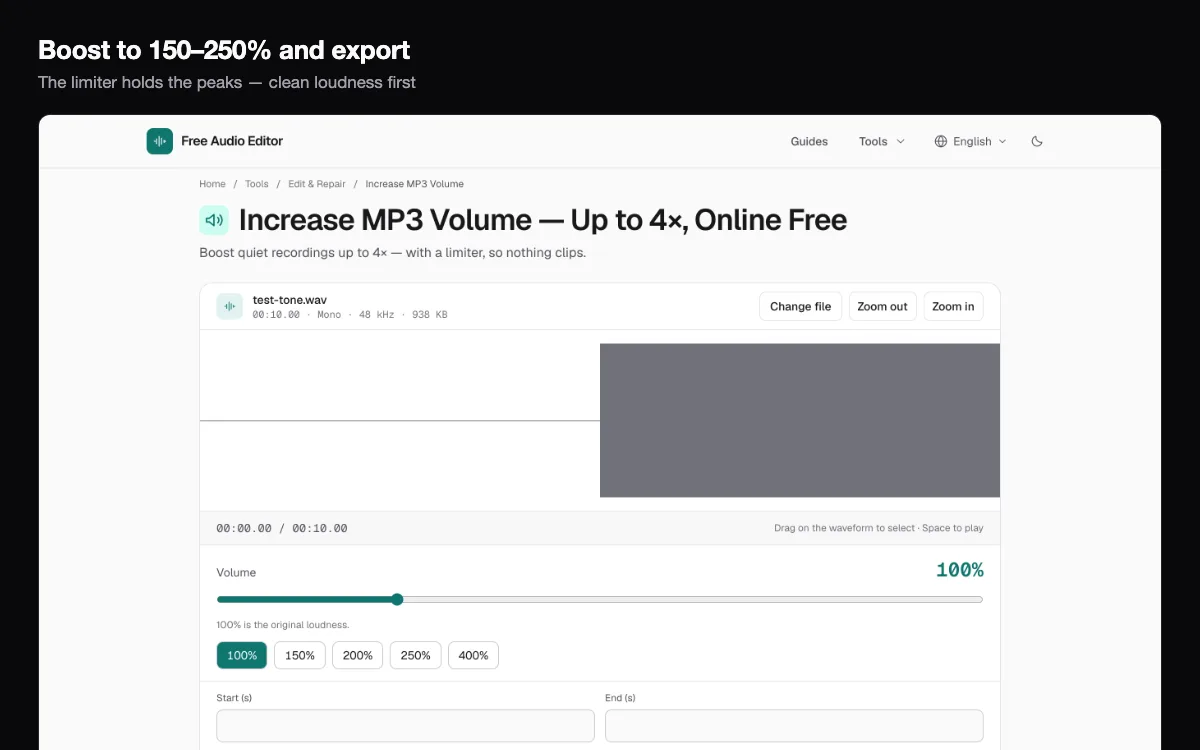
Open the MP3 volume booster, tap the drop zone, and pick the memo from Files. Drag the boost to 150–250% and play it back. A limiter holds the peaks, so this range usually stays clean for voice.
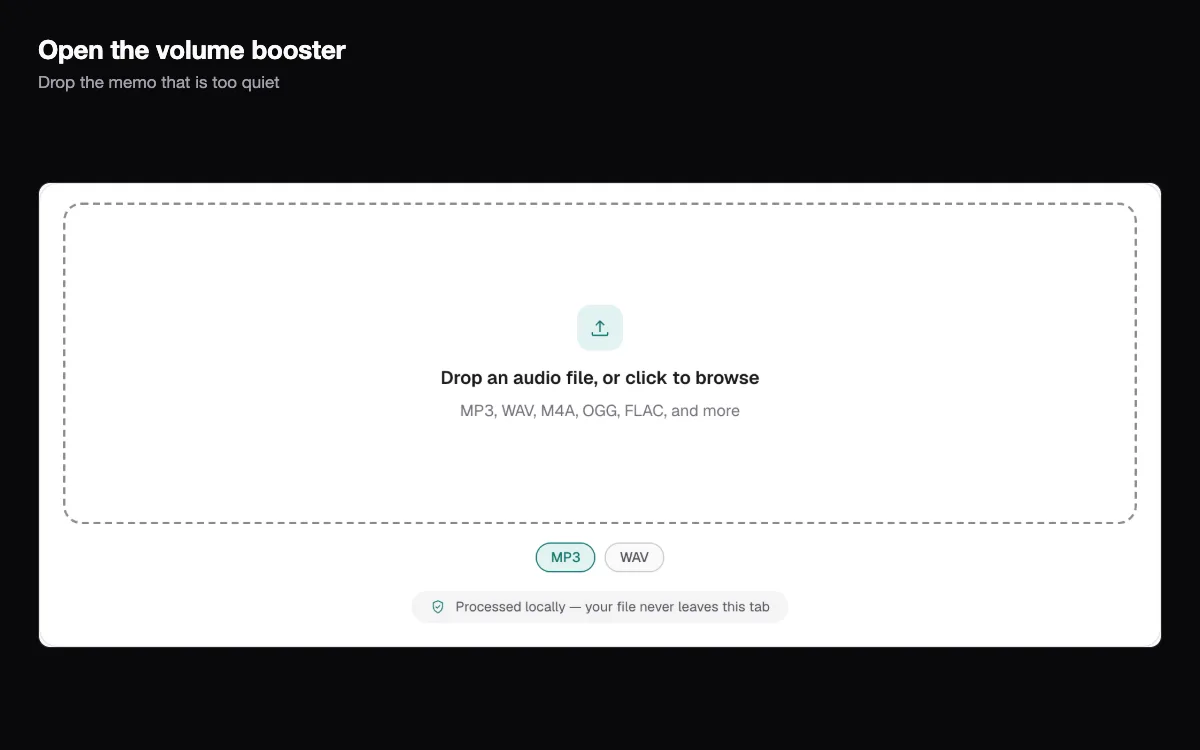
Tap Boost and download and the louder file saves as MP3 or WAV, ready to share, attach, or drop back into Files. The memo never left the phone.
The booster takes the .m4a directly. A soundtrack stuck inside a video is the volume booster’s job — same kind of gain, wider formats.
3. If it still sounds shy
Push toward 300% and listen again. The booster tops out at 400%, about +12 dB. Past roughly 300%, the limiter spends more of its time holding the file back, the loud moments start to pump, and the room hiss rises along with the words — gain cannot separate voice from noise. Clean loudness beats maximum loudness. If 300% still is not enough, the memo’s problem is dynamics or headroom, not volume, and the section below routes you.
Why the memo came out quiet
| Cause | What you hear | The fix |
|---|---|---|
| Distance | Quiet but clear | Re-record a hand-width from the mic, or boost |
| Blocked mic (hand, case, sleeve) | Quiet and muffled together | Clear the mic hole and re-record |
| Bluetooth headset mic | Quiet and thin; the headset’s mic did the recording | Re-record with the phone mic, or boost |
| Big room or back row | Quiet with room echo | Boost, and record closer next time |
| Chat-app re-compression | Quiet plus artifacts | Get the original file from the recording phone |
Distance is the number one cause: a phone mic a meter away hears a fraction of what one at hand-width hears, and no export fixes a take where the room did the talking.
One settings note: Mic Mode with Voice Isolation cleans up live calls in FaceTime and the apps that support it, but it is not a volume setting and it does not touch saved files. A memo that came out quiet needs the gain change above, whatever the calls sounded like.
It is probably not the file format
MP3, WAV and M4A hold levels equally well. Converting the memo will not make it louder — the boost is a gain change. Convert for compatibility, not volume, and note that the booster above already exports MP3. A separate stop at the M4A to MP3 converter is only for making an MP3 copy at the original level.
Boost first, cut later
If the memo also needs trimming, boost before you cut, not after. The gain change does not care where the silence is, but every extra export step is another chance to re-encode a lossy file. Boost the original, check the level, then trim the loud version once. The order saves a generation, which on a fourth-generation WhatsApp forward is worth protecting.
One more thing about messenger files: if the memo reached you through a chat app, the quietness may be the least of it. Those forwards are re-encoded to a low bitrate on the way, and a boost raises the artifacts along with the words. The original file from the phone that recorded it always sounds better than any fix applied to the forward.
If the boost is not enough
A uniformly quiet memo is the booster’s job. Three neighboring problems are not.
Some words loud, others buried
That is uneven dynamics, and one gain for the whole file cannot fix it — pushing enough to lift the buried words would clip the loud ones. The level compressor pulls the loud parts down and the quiet parts up, so a single gentler boost can then carry the whole memo. Normalization versus compression for speech is the choice between one gain and that narrower range.
Quiet but already peaking
If the loud moments already touch the ceiling, there is no headroom left to boost into. Normalize finds the largest clean gain the file allows, capped at 4×, and compression handles the rest.
Only a shorter clip is needed
Boost first, then cut the part you keep with the audio trimmer — one pass at the new level instead of two lossy exports over the same file.
Several memos that should be one file
A boost does not join clips. Join Voice Memos into one file, then raise the combined file once. The joiner accepts the M4A the phone saved.
How the next memo records louder
Prevention is a ten-second ritual. Record a sentence, play it back at the volume you will actually use, and only then record the real memo. Hold the phone with the mic end toward the source, a hand-width away, and check that nothing covers the hole. Skip the Bluetooth headset for takes that matter — its mic sits farther from your mouth and records quieter than the phone’s own. In wind, a sleeve or a hand cupped behind the mic beats any app setting. And if a take really matters, the voice recorder in the browser shows a waveform while you record, so a quiet take is visible before it matters.
FAQ
Why is my Voice Memo so quiet?
A quiet Voice Memo is usually recorded too far from the iPhone microphone, with the mic blocked by a hand or case, or routed through a Bluetooth headset mic. The words can be clear on earbuds and still useless on speaker, because the whole file sits far below full scale. Converting the format will not fix it — you need a gain change on the file, or a closer take next time.
Can I make an iPhone Voice Memo louder without installing an app?
Yes. In Voice Memos, open the clip, tap Share, and Save to Files. In Safari, open a browser volume tool such as Increase MP3 Volume on freeaudioeditor.online, drop the .m4a in, raise the gain to about 150–250%, preview, and export MP3 or WAV. Processing runs on your device; the memo is not uploaded. Voice Memos' Enhance Recording only changes playback — it does not make the shared file louder.
Will boosting a quiet Voice Memo distort it?
Moderate boosts, about 150–250%, usually stay clean when a limiter catches the peaks. Pushing toward 400% (roughly +12 dB) makes the quiet parts audible but can pump the loudest moments, and it raises hiss and room noise along with the words — gain does not improve signal-to-noise. If some words are already loud and others are buried, use compression instead of one global boost.
How loud can I make it?
The volume tool boosts up to 400%, about +12 dB. For voice, 150–250% is the practical range: loud enough to hear across a room while the limiter still holds the peaks. Back off if the loud moments start to breathe or the hiss rises with the words.
Sources
More hands-on walkthroughs in all guides.