How to Convert FLAC to MP3 (And What the Conversion Costs)
By Free Audio Editor · · How we test
FLAC stores every sample of the recording and compresses them to roughly half
the size of a WAV, which is why it is the archive format of choice. The catch is
that plenty of playback gear never learned to read it: car head units, Bluetooth
speakers, and older apps often skip a .flac file entirely. Converting to MP3
buys compatibility at a known price, and the
FLAC to MP3 converter runs that conversion in the browser. This
page is about paying the price once, deliberately.
What survives, and what does not
FLAC is lossless: unpack it and the original samples come back bit for bit. MP3 is lossy: the encoder keeps a hearing model of the recording and discards the residue. Converting FLAC to MP3 is therefore the file’s first lossy generation, and at 320 kbps that generation is past almost everyone’s hearing in a casual listen. At 128 kbps it shows up in cymbals and reverb tails first.
The residue is not recoverable, so the rule follows: convert a copy, keep the FLAC, and treat the MP3 as the throwaway playback file. A library converted once, carefully, sounds identical on the gear that needs MP3; a library converted twice starts showing why the first encode was the only free one.
Convert a file
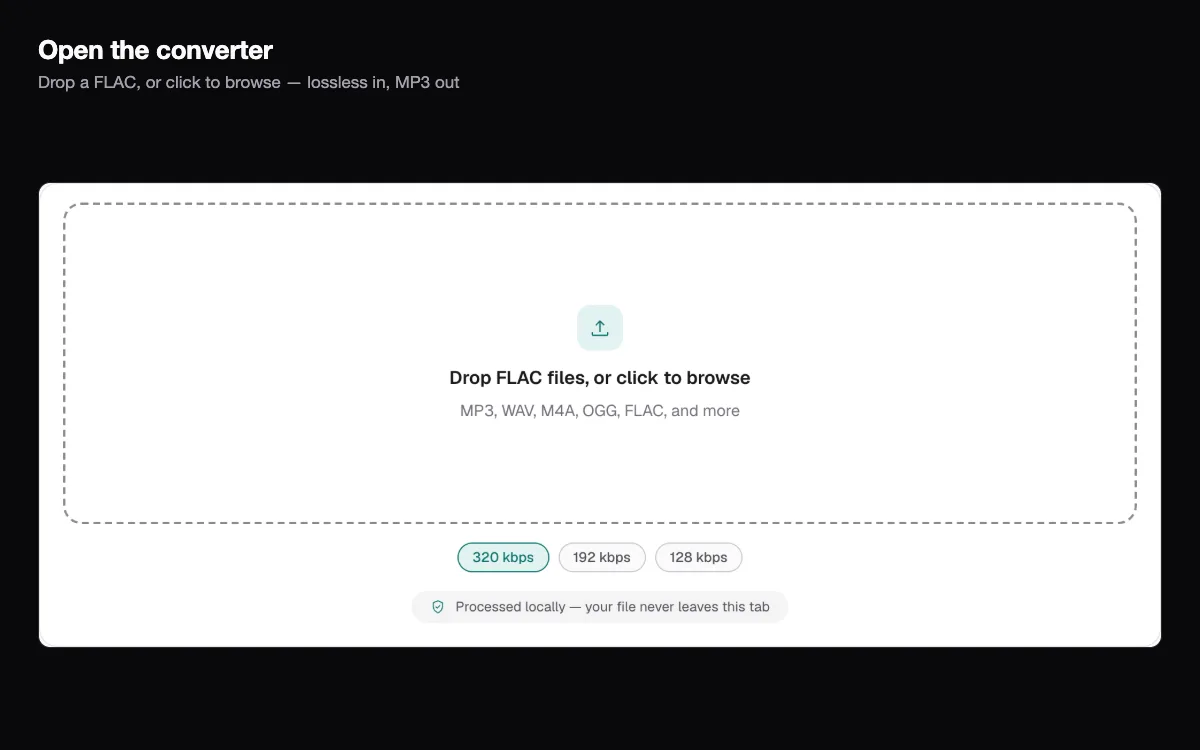
- Drop the
.flacon the FLAC to MP3 converter, or click to browse. Other lossless formats convert the same way. - Pick the bitrate. The menu opens on MP3 · 320 kbps.
- Click Convert to MP3. The download starts when the encode finishes, and several files come back as one ZIP.
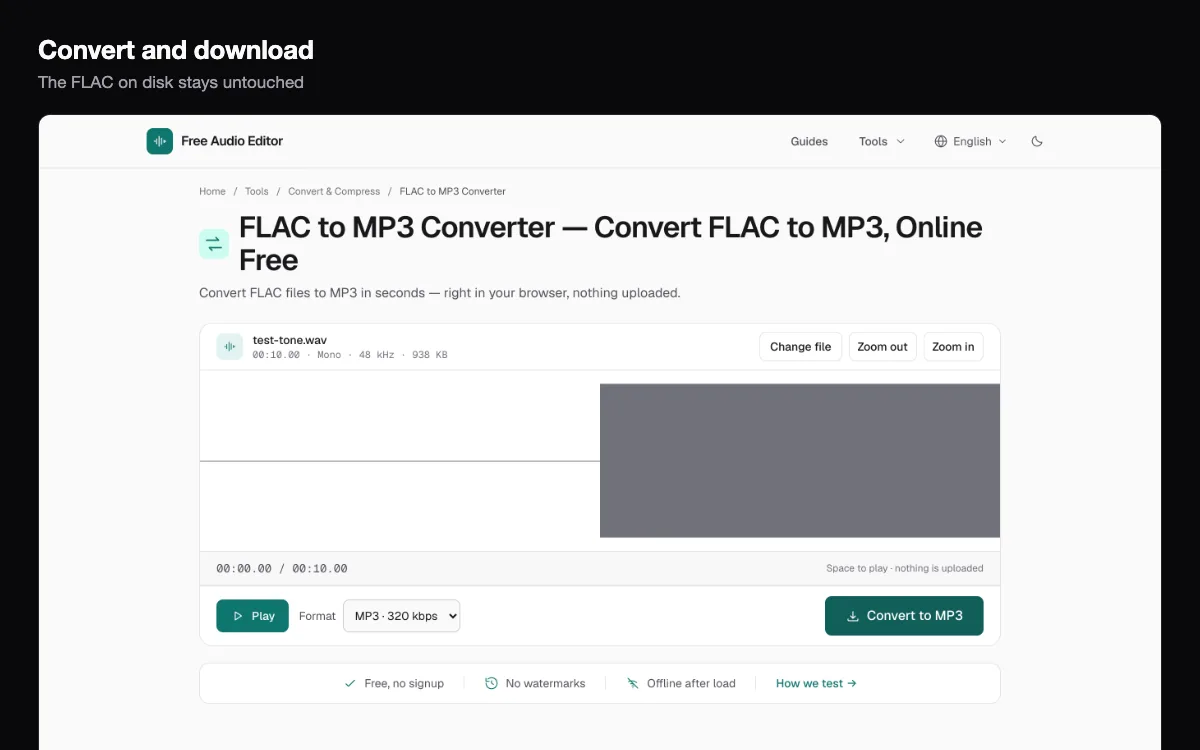
A 25 MB album track at 320 kbps lands near 12 MB, and the conversion itself takes a couple of seconds on the device.
Which bitrate, for which destination
- Car stereo and phone storage: 192 kbps. An hour of music is about 85 MB, and ordinary car audio does not resolve past this rate.
- Headphone listening and sharing: 320 kbps. The top of MP3, at about 2.4 MB per minute.
- Voice content that happens to be in FLAC: 128 kbps. Speech carries at this rate, near 58 MB for an hour.
The numbers are the MP3’s, not the FLAC’s: the FLAC held more, and no bitrate puts it back.
Mistakes that waste the library
- Deleting the FLAC after the convert. The MP3 is the playback copy, not the archive. Storage is cheaper than re-ripping.
- Trimming the MP3 when the FLAC is still there. Every edit of a lossy file spends a generation. Cut the lossless source, then encode once; the MP3 cutter is for files that are already MP3.
- Converting at 128 kbps for a music library. Speech is fine there. A full album at 128 is the difference you hear later and cannot fix after.
FLAC on phones, and the other lossless formats
Phone support for FLAC is better than car support but still patchy: Android plays it in most current players, and iPhone support depends on the app, since the Files preview and several music apps stay silent on it. If the FLAC library is heading for a phone, test one file in the player you actually use before converting the rest, or convert for the phone and keep the FLAC for the computer.
WAV and AIFF take the same road. They are lossless containers without the compression, so they are bigger and the same rules apply word for word: the conversion pages treat them identically, and the lossless original stays the archive.
A library strategy that survives
Keep the lossless masters in one folder, generate an MP3 folder from them at one bitrate, and point the car stick and the phone at the MP3s. New rips go in lossless first, and the MP3 folder regenerates from them. The one-time cost is disk space; the return is that no player argument ever costs you samples again.
Where each file belongs
Keep the FLAC on the drive or the backup, hand the MP3 to the gear that asked for it, and the trade is one-directional in your favor. The full comparison of the two formats, including the trap of converting back, is in WAV vs MP3. If the destination is a car that is already refusing files, why a car stereo will not play a track lists the causes in order.
Sources
More hands-on walkthroughs in all guides.