How to Convert WAV to MP3 (Free, on Any Device)
By Free Audio Editor · · How we test
A WAV recording is big because it keeps every sample: 16-bit stereo at 44.1 kHz is about 10 MB per minute, so a half-hour set lands near 300 MB. Converting to MP3 re-packs that audio at 128, 192, or 320 kbps, and the same half hour fits in 30 to 70 MB. The WAV to MP3 converter does it in the browser, and this page also covers the desktop routes with the trade each one makes.
What the conversion throws away
MP3 is lossy. The encoder models what a listener is expected to hear and spends its bits there, so the decoded file no longer contains every sample of the WAV. At 320 kbps the difference hides from almost everyone in a casual A/B. At 128 kbps it shows up first in cymbals and reverb tails. None of it comes back later, which is the one rule worth memorizing: keep the WAV while you might edit again, and encode the MP3 once, at the end.
Music app on a Mac
Apple’s Music app converts through Import Settings. The bitrate is chosen before the convert command, and Create MP3 Version uses it without asking again.
- Choose Music > Settings, then Files, then Import Settings.
- Set Import Using to MP3 Encoder and pick the quality in that window.
- Drag the WAV into the library if it is not there already.
- Select the file and choose File > Convert > Create MP3 Version.
The MP3 appears next to the original in the library. Apple documents these steps on its Convert music file formats support page.
VLC
VLC converts without installing anything beyond the player most people already have. On Windows and Linux the path is Media > Convert / Save: add the file and click Convert. On a Mac the path is File > Convert / Stream. Pick the Audio - MP3 profile, which encodes at 128 kbps, 44.1 kHz. Speech is fine there. For music, click the wrench beside the profile, open the audio codec tab, and raise the bitrate to 192 or 320.
Type an output name that ends in .mp3. Players refuse the file without the
extension.
Audacity
Audacity is the answer when the WAV needs an edit before it is encoded. Open the file, do the cut or the fade, then choose File > Export Audio and pick MP3 with the bitrate. A current install from audacityteam.org exports MP3 out of the box.
Editing in the WAV domain and encoding once beats encoding first and cutting the MP3 afterwards. Every pass over a lossy file spends another generation.
ffmpeg
One line handles a single file, and a small shell loop handles a folder:
ffmpeg -i input.wav -codec:a libmp3lame -b:a 192k output.mp3Set 128k for voice, 192k for general music, 320k for an archive-grade
copy. The command decodes and encodes once, and the WAV on disk is untouched.
An upload site
Upload converters run the same encode on someone else’s server. They work, and the price is the file: it leaves the device for as long as their queue and retention policy say. Their decoders are also broader than a browser’s, so they remain the fallback for a WAV the tab refuses to open. A field recording, an unreleased mix, or a client’s raw takes are the wrong files for that trade, because every local route above performs the identical conversion without it.
Which bitrate
Match the rate to the destination instead of defaulting upward:
- Voice and meetings: 128 kbps. Speech carries at this rate, and an hour of recording lands near 55 MB instead of 600 MB of WAV.
- Music for listening and sending: 192 kbps. Past this rate the MP3 stops being the weakest link on ordinary headphones.
- Music you keep: 320 kbps. The top of MP3, and the safe answer when unknown equipment will judge the file.
The arithmetic converts directly: about 1 MB per minute at 128, 1.4 at 192, and 2.4 at 320.
When to keep the WAV
Convert a copy, and keep the original until the MP3 has proven itself on the device that needed it. Three jobs have no business becoming MP3 yet:
- A file that will be cut, faded, or normalized again. Every lossy re-encode spends a generation.
- A stem or sample headed for a DAW. Samplers want the real samples.
- Anything where the exact samples are the deliverable.
The full trade-off is laid out in WAV vs MP3, and the editing workflow lives in how to edit a WAV file.
The short path, in the browser
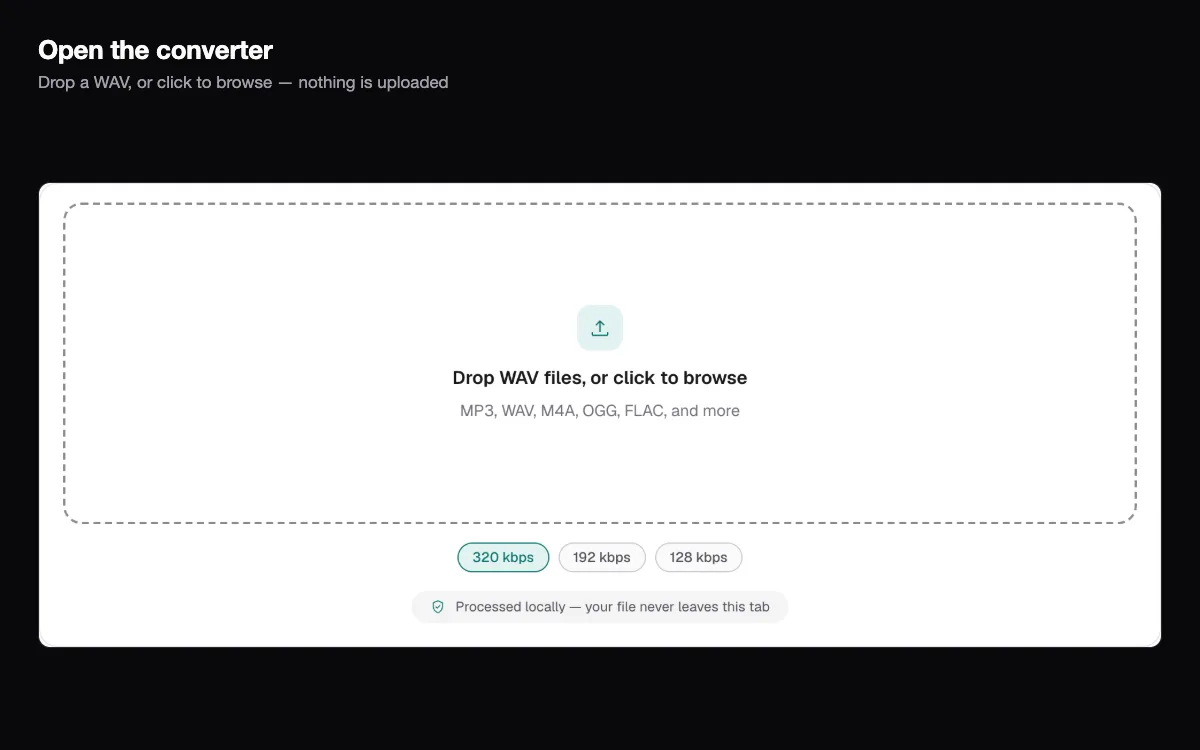
No install and no upload: the WAV to MP3 converter decodes and encodes in the tab. M4A, FLAC, and OGG files take the same road. One file downloads by itself; two or more come back as one ZIP. The encoder is lamejs, shipped with the site and loaded only when an export needs it.
- Drop the
.wav, or click to browse. - Pick the bitrate. The menu opens on MP3 · 320 kbps; drop to 128 for voice.
- Click Convert to MP3. The download starts when the encode finishes.
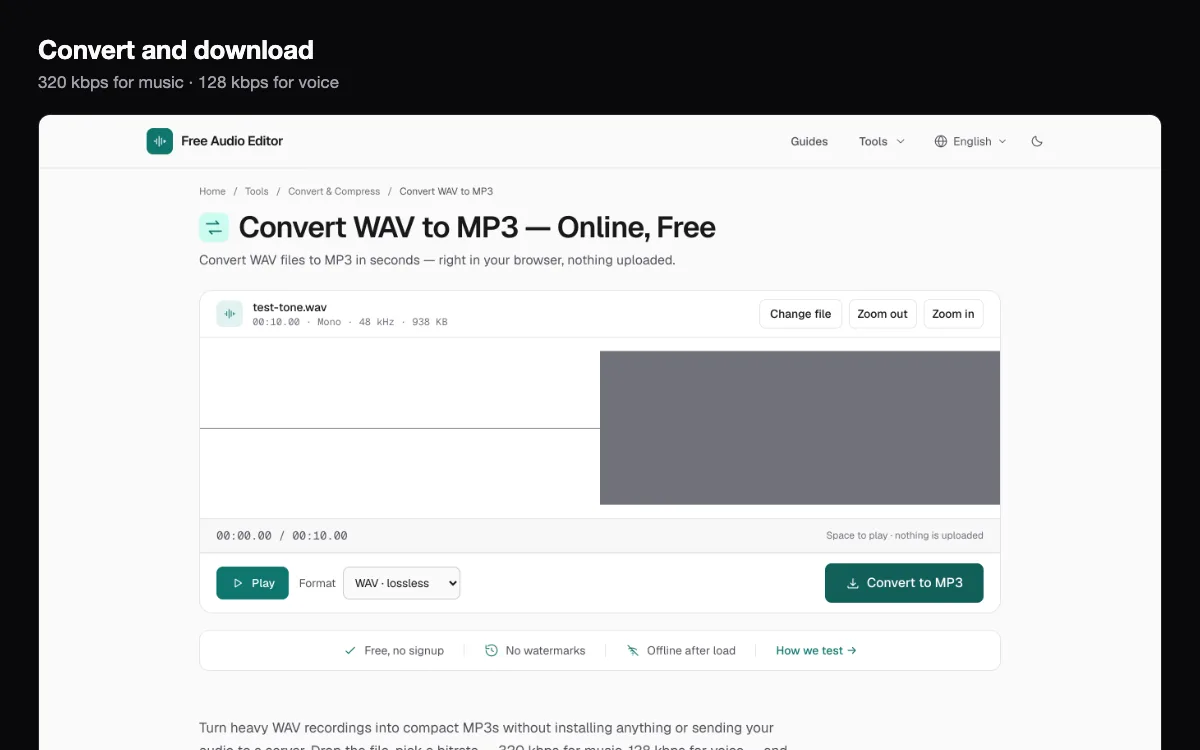
If the next stop is more editing, the same menu includes WAV · lossless, and MP3 to WAV is the page for audio that is already MP3. To cut a section off the result, the MP3 cutter takes it from there.
Sources
More hands-on walkthroughs in all guides.