How to Record a Voice Memo in the Browser
By Free Audio Editor · · How we test
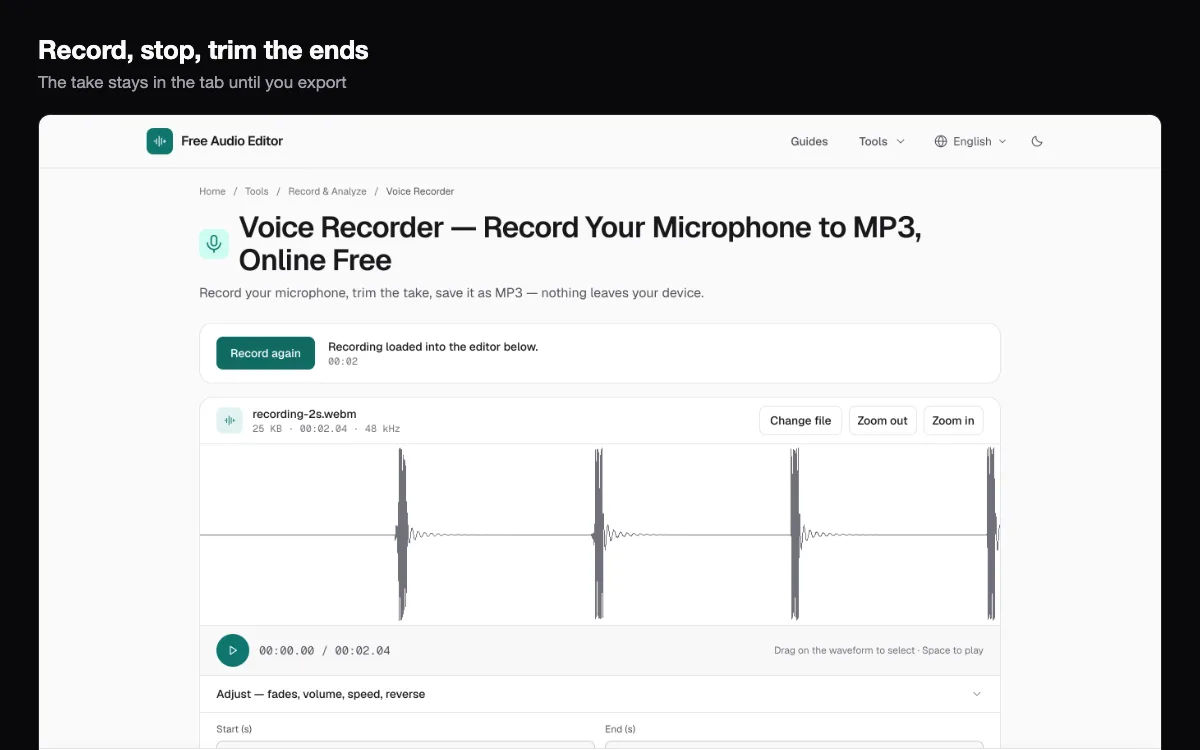
Sometimes the recorder you need is the one already open. The voice recorder is a browser tab that captures the microphone, shows the waveform, and saves an MP3 without an app install or an account: record, stop, trim the ends, export. The take never leaves the device, which matters for interviews, client calls and anything you would not upload to a random site.
Before you press record
Use a browser that supports MediaRecorder. Chrome, Edge, Firefox and Safari on desktop all work. Chrome on Android and Safari on iOS work too. If the Record button says recording is unavailable, the browser is missing the API.
Choose the microphone. A laptop’s built-in mic is fine for a memo. A USB headset or an external mic is better for an interview or a narration. Check the input in the system sound settings before you open the page.
Find a quiet room. The recorder cannot remove a fridge hum, traffic or a keyboard. A closet with soft furnishings sounds better than a kitchen with hard surfaces. Put the mic a hand’s width from your mouth, slightly off to one side, to reduce plosives.
Do a ten-second test. Record a sentence, stop, and play it back. Check the level and the room before you record the real take.
Record the take
- Open the voice recorder.
- Press Record and accept the browser’s microphone permission prompt.
- Watch the timer. Speak at a normal level; do not lean in for emphasis.
- Press Stop when you are done. The take loads into the editor below.
- Play it back. If you need another take, record again; the previous take is replaced unless you export it first.
The browser decides the capture format. Chrome and Firefox record WebM with Opus; Safari records MP4 with AAC. You do not need to care: the export converts the take to the format you pick.
Trim before you export
The first and last seconds are usually a breath, a chair creak, or silence. Cut them.
Drag across the part you want on the waveform, set the mode to Keep selection, and preview. The editor plays only the selection. Nudge the handles so the first word is whole and the last word is not clipped.
Export as MP3 192 kbps for a memo you will send. Export WAV if you will edit the take again or run it through a compressor. A WAV avoids a second lossy encode later.
Where the recording lives
In the tab’s memory. Not on a server, and not in a cloud folder. If you close the tab without exporting, the take is gone. That is the privacy benefit and the risk in one sentence.
For a long interview, export in sections. A multi-hour take uses a lot of memory, and a browser tab is not a hard drive. Record a section, export it, then start the next one.
What this page cannot do
It records the microphone only. It does not capture the computer’s output, a phone call, or a meeting happening in another app. It does not transcribe. Transcription is a separate job on the audio-to-text page, which takes a file rather than a live microphone.
It also does not fix a quiet take. A recording made too far from the mic stays quiet after export. Raise it with normalize if the whole file is low, or the level compressor if some words are loud and others are not. An iPhone Voice Memo is a file this recorder did not make. Make a quiet Voice Memo louder after you save that memo to Files.
If the destination is a podcast, check the level with the loudness meter after editing. A recorder captures a take; it does not master it.
After the recording
- Send the MP3 in a message or upload it to a private folder.
- Keep the WAV if the file will be edited on a computer.
- Name the export with the date and the subject.
2026-10-21-client-call.mp3is easier to find thanrecording.mp3.
If the file needs a cleaner low end, run the high-pass filter before exporting. If it needs to be shorter, the audio trimmer and the silence remover are the next pages. For a spoken-word workflow from record to publish, start with how to trim audio.
Sources
More hands-on walkthroughs in all guides.