Slow Down Audio Without Changing Pitch (Online)
By Free Audio Editor · · How we test
Two different controls both get called “slowing down”, and they are not the same job. Play a file at a lower rate and the pitch sinks with it — that is a speed change. Stretch the file so it lasts longer while every note keeps its pitch, and that is a tempo change: the thing you want when a guest talks too fast for the transcript, or a guitar part has to go to 0.75× before your hands can learn it. The tempo changer does the second job in the browser, over a 0.75× to 1.25× range in steps of 0.01, and this page covers what stretching costs, the Audacity route, and the cases where the cheap speed change is actually the right tool.
Why slowing down usually wrecks the pitch
A digital audio file is a list of samples per second. Play that list back slower and the gaps between samples stretch, so every frequency drops by the same ratio — tape machines worked exactly this way, which is why slowed tape sounds like slowed tape. Keeping the pitch while the length moves needs the file re-synthesized: a phase vocoder or a similar time-stretching algorithm rebuilds the audio at the new length, frame by frame. That is real processing with real artifacts, which is why honest tools put a band around the slider instead of promising the world.
The browser route
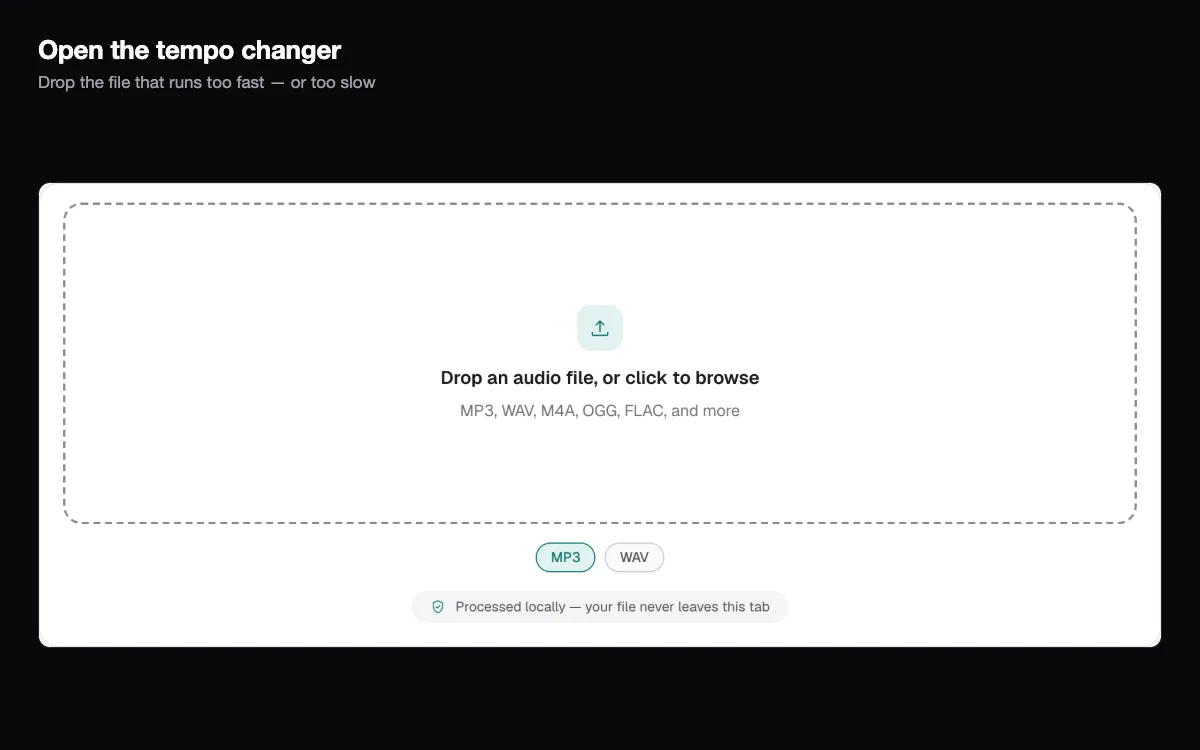
- Open the tempo changer and drop an MP3, WAV, M4A, or other audio file. It stays on your device.
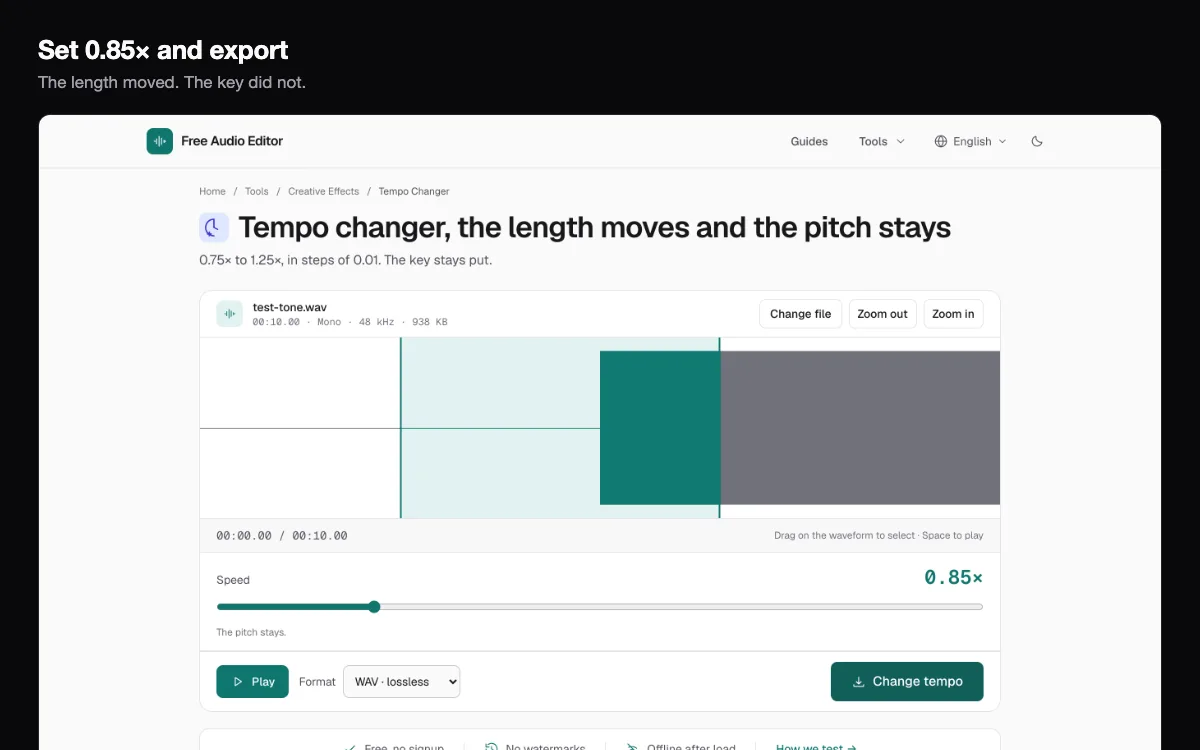
- Drag the tempo control between 0.75× and 1.25×. Each step is 0.01, and 1.00× is the file you dropped. 0.90× turns a rambling ten minutes into eleven; 1.15× pulls it back under the slot without anyone sounding like a cartoon.
- Press play. The key and the voice timbre sit where they were — only the length moved.
- Export with Change tempo. MP3 for sending, WAV if the file feeds another edit. The download starts on its own.
The honest band is that ±25%. Inside it, a modern stretch on voice or a full mix is hard to point at. Outside it, artifacts grow fast — keep reading.
Picking the ratio by the job
The band is 0.75× to 1.25×, but the useful stops cluster by task:
- Transcription and note-taking: 0.85×–0.95×. Slow enough to type over, close enough to natural that an hour of audio stays listenable. Below 0.85× the pauses get longer faster than the words get clearer — pull the level, or let a transcript do the work instead.
- Learning an instrument part: 0.75×–0.85×. The pitch is the thing being learned, which is exactly why the key must not move.
- Fitting a slot: 0.98×–1.08×. A 62-second cut into a 60-second spot is a 3% stretch nobody hears, on voice or mix. This is the quiet everyday use of the 0.01 steps — nudges that keep both the clock and the sound.
Small ratios are also where the stretch is at its best. The further the slider travels, the more the algorithm invents between frames, so a 1.04× patch is safer than a heroic one.
Audacity
For a bigger range or offline batch work, Audacity’s Change Tempo effect takes a percentage or an exact BPM target and stretches with a high-quality mode. The same manual documents a sliding variant for tempo that changes over the length of the track. The rule from the browser route still applies: the further from 100%, the more the algorithm is inventing, and percussion is the first thing to smear.
When plain speed change is the right tool
If the pitch moving with the length is fine — or wanted — skip the stretch. The audio speed changer is a resample: no artifacts, no band, and the key slides where it slides, which is exactly the sound of slowed + reverb and nightcore. And the opposite job — the pitch moves while the length stays — belongs to the pitch changer. Tempo changer is for the narrow case where the clock moves and the key may not.
Common mistakes
- Asking for 0.5×. Half speed with the key intact is outside what a stretch can do honestly; the output flutters and smears. Learn the part at 0.75× and work up, or open a DAW and accept the texture.
- Stretching when a transcript would do. If the goal is reading a fast talker, transcribing the audio to text beats listening to it slower.
- Judging the artifact on the drums. Percussive transients smear first. Test any stretch on the drum bus; if the hats turn to sand, pull the ratio back toward 1.00×.
- Re-encoding the master. An MP3 export is one lossy generation. Keep the WAV of the stretched version if more edits are coming, and do them there.
Where the stretched file goes next
Voice that is now the right speed but sits low in level goes through normalize audio before it ships. If the pitch is the thing that needs to move after all — a song in the wrong key for the singer — the steps are in how to change pitch without changing speed, and the tempo changer is still open for the next file.
Sources
More hands-on walkthroughs in all guides.