How to Edit Audio Online
By Free Audio Editor · · How we test
Most audio jobs come down to five edits: keep one part of a recording, cut out a chunk from the middle, fade the ends, fix the loudness, and export in a format that fits where the file is going. Every one of those runs free in a browser on this site, with no signup and nothing uploaded — the file is decoded in your own tab, and you can go offline after the page loads and keep working.
This guide walks through each edit with the tool that does it. The controls, limits, and numbers below were checked against the live pages in November 2026.
What you need
A browser and the file. MP3, WAV, M4A, OGG, and FLAC all decode on the device; video files decode too, and what gets edited is their soundtrack — the picture is not saved. A file over 300 MB is rejected. Anything over about an hour still opens, but the page warns that the tab may run out of memory, so long recordings are better handled on a computer than a phone.
Keep one part: trim
The audio trimmer keeps a span and throws away the rest.
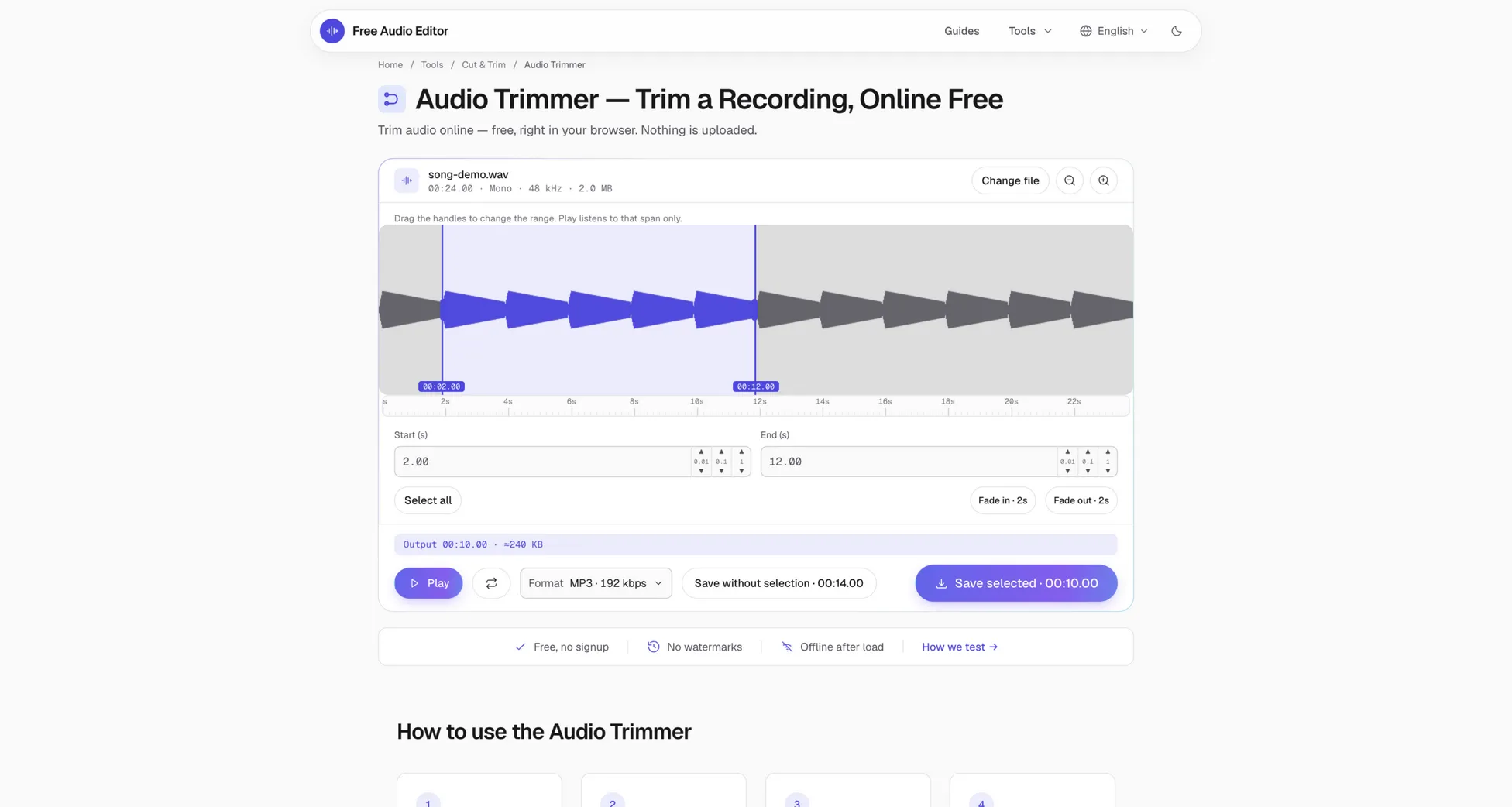
- Drop the file in. The waveform draws in the tab.
- Drag across the waveform to mark the span, or type the times into Start and End. The steppers next to each field move a boundary by 0.01 s, 0.1 s, or 1 s per click, and the pills on the waveform show each boundary’s exact time.
- Turn Loop on to hear only that span while you fine-tune. Every adjustment restarts from the top, so a change is heard the moment it is made.
- Pick the format — MP3 at 128 to 320 kbps, lossless WAV, or M4A — and press Save selected. The bar above the button estimates the output size before you commit: in the screenshot, a 10-second span at 192 kbps is about 240 KB.
The same page deletes instead of keeps: Save without selection exports everything outside the span. That is the entire difference between trimming and cutting, and it is why the next step needs no new tool.
Cut out a chunk from the middle
Deleting a cough, a bad take, or an ad from the middle of a file is the same editor with the selection doing the opposite job. The MP3 cutter is the page written for it — same waveform, same steppers, same formats as the trimmer.
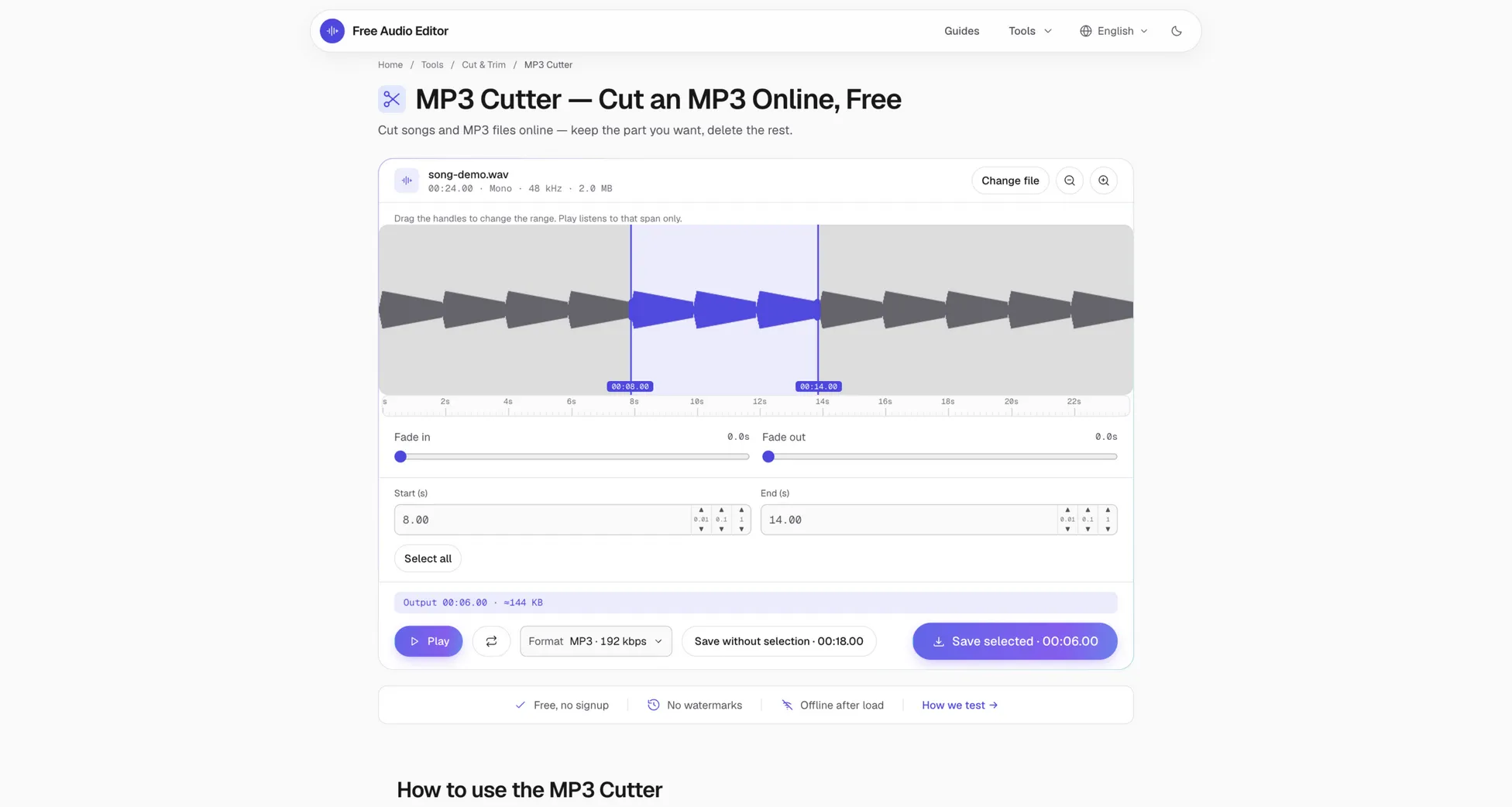
Mark the chunk you don’t want — 8 to 14 seconds in the screenshot — and press Save without selection. The output bar shows what remains: 24 seconds minus a 6-second chunk is 18. Mark the part you do want instead and Save selected keeps just that. Play the joins before you export; a cut that lands mid-word is the most common mistake, and the Loop audition makes it audible in one pass.
Fade the ends
A cut usually ends dead: the file starts or stops at full level and the edge sounds abrupt. The fade tool shapes the first and last seconds without touching the middle.
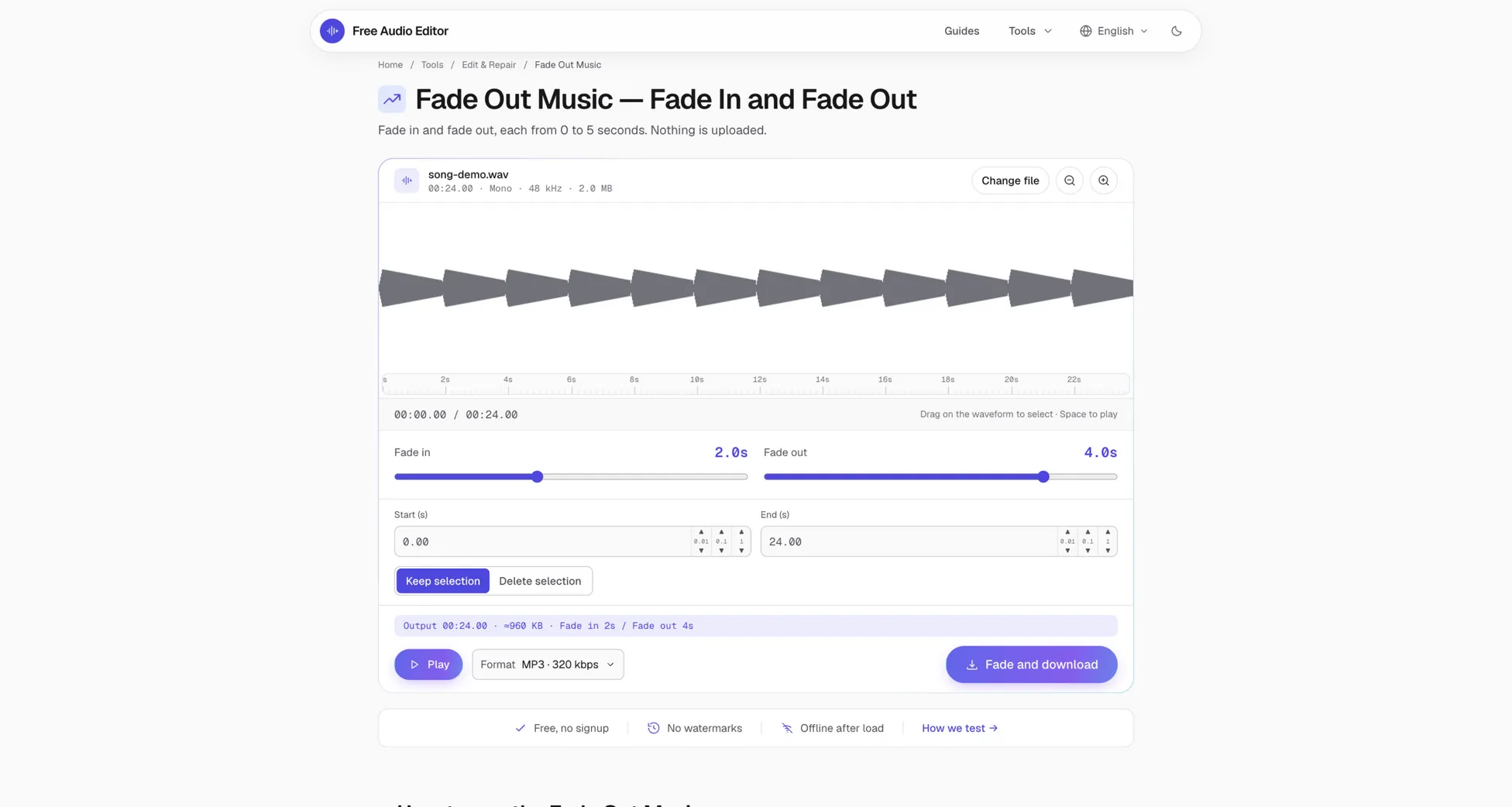
Each fade runs from 0 to 5 seconds on its own slider. One to three seconds is the natural range for songs; live recordings can take four or five; loops and ringtones want 0.2 to 0.5 seconds so the attack stays. If a cut clicks at the boundary instead of just stopping dead, that is a zero-crossing problem, and the fix is the same short fade.
Fix the loudness
A quiet export is the other job a cut leaves behind. The volume tool applies one gain to the whole file, from 10% to 400% — about +12 dB at the top.
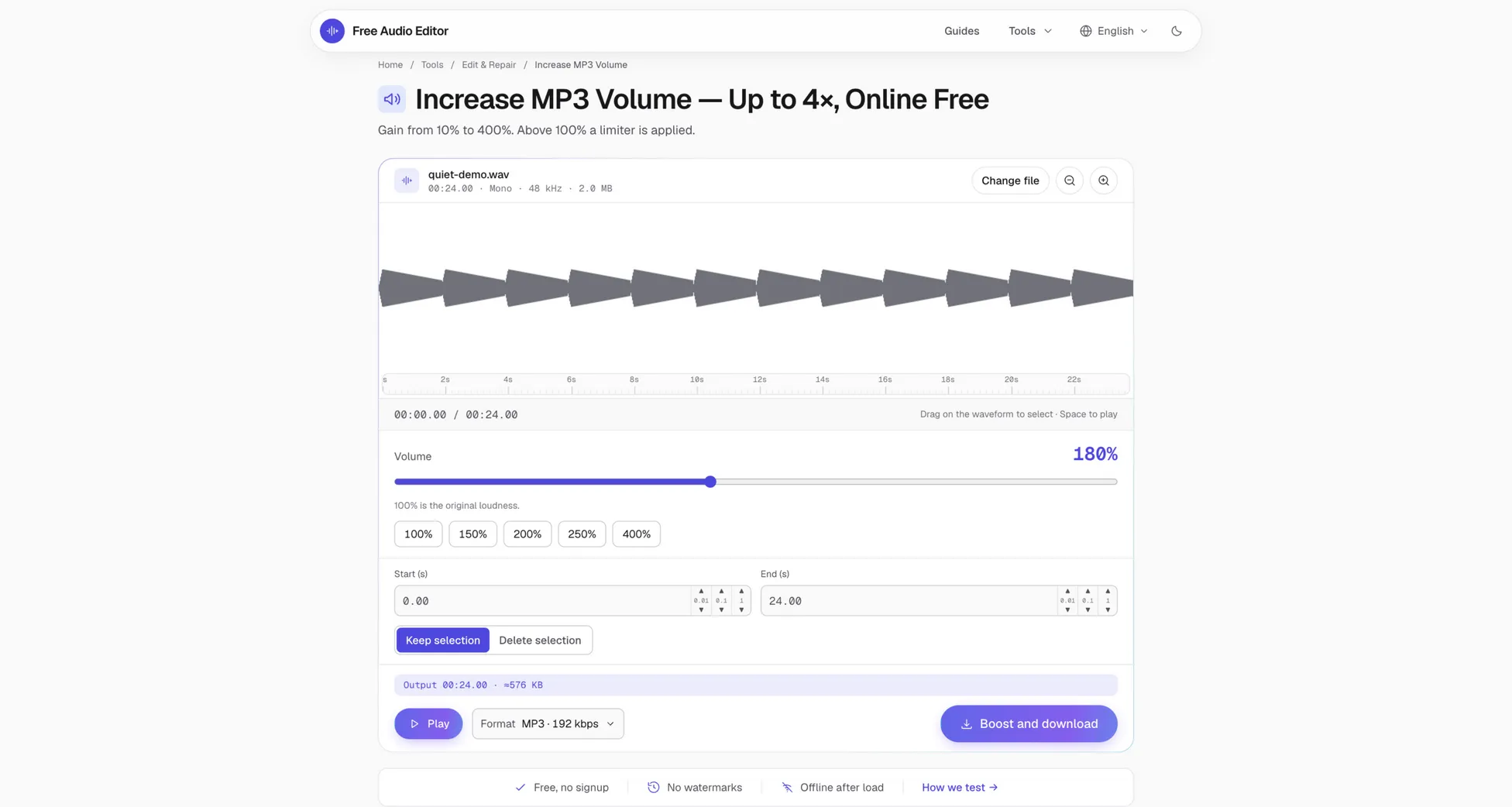
Above 100% a limiter holds back the peaks so the boost does not clip hard. For voice, 150% to 250% is the practical range; push toward 400% and the hiss and room noise rise with the words, because gain does not improve the recording underneath it. If the result sounds strained, back off 10–20% — clean loudness beats maximum loudness.
Two related jobs use different tools. If the level is inconsistent across the file rather than uniformly low, gain vs volume explains the difference, and compression rather than one global boost is the fix — normalize vs compress walks that choice. If the file has to hit a delivery target such as −16 LUFS for podcasts, measure it on the loudness meter instead of guessing; the podcast loudness guide covers the numbers.
Pick the export before you cut
Every sound edit decodes the file and writes it again. Exporting MP3 is one encode at the bitrate you pick; exporting WAV keeps the samples lossless. Two rules follow:
- If another edit is still coming, export WAV and encode MP3 at the very end. Each extra MP3 encode throws away a little more.
- If this is the last step, match the destination. A chat app plays anything — MP3 at 128 or 192 kbps keeps the file small. An email has a size cap — a 12-minute cut at 128 kbps stays near 12 MB. A file you will edit again gets WAV.
How to edit an MP3 goes deeper on the encode arithmetic for MP3 specifically.
When a browser is enough
One file, a chain of these edits, done once: the browser is the faster path, because there is no install and no project to set up. Mixing several files into one track stays in the browser too — the multi-track editor layers files with per-track level and pan.
A desktop editor earns its install when the work is a project: several tracks you will reopen tomorrow, plugin effects, heavy noise repair. Audacity is the standard choice and costs nothing; when it beats an online editor is a honest comparison of the trade. For everything in this guide, it does not need to.
When something goes wrong
- The file won’t load. Check the format and the 300 MB limit. Video files decode, but only their soundtrack survives an edit.
- The edges click after a cut. Add a 0.2–0.5 s fade at each end, or re-cut on a quieter point in the waveform — why cuts click explains both.
- It’s still too quiet after boosting. One gain for the whole file has a ceiling set by the loudest moment. If some words are buried while others are fine, compression, not more gain is the fix.
- The trimmed song starts too abruptly. That is a fade job: 1–3 seconds in, and the edge stops fighting the playlist before it.
FAQ
Where can I edit audio online for free?
On this site, the five tools in this guide cover the common jobs: the audio trimmer keeps a span, the MP3 cutter deletes a span, the fade tool shapes the ends, the volume tool raises or lowers the file, and the normalizer evens out peak level. All are free, need no signup, add no watermark, and process the file in your own browser tab — nothing is uploaded to a server.
Can I edit an audio file without installing anything?
Yes. Every edit in this guide runs in the browser after a single page load: the file is decoded with the Web Audio API in your own tab, edited in memory, and written back out as MP3 or WAV. You can disconnect from the internet once the page has loaded and keep editing.
What should I use to cut music?
The MP3 cutter is the page written for songs: mark the chorus or intro you want and save it, or mark the part you don't want and delete it. The audio trimmer is the same editor framed for recordings. Both cut at 0.01 s precision and export MP3 up to 320 kbps or lossless WAV.
Is Audacity 100% free?
Yes. Audacity is free and open-source software under the GNU General Public License, with no export caps or watermarks, from audacityteam.org. Installing it still makes sense for projects you will reopen, multi-track sessions, and plugin-based work — a one-file cut, fade, or volume fix does not need an install.
Sources
More hands-on walkthroughs in all guides.