How to Make Audio Louder Without Distortion
By Free Audio Editor · · How we test
A quiet file gets louder without distortion three ways, and the right one depends on why it is quiet: raise the gain with a limiter holding the peaks, compress the jumps first and then raise the gain, or normalize the peak to a fixed level. All three run in a browser on this site, free, with the file never leaving your tab — and all three keep the peaks below the ceiling where distortion lives.
The tools most results point at are music-production setups: compressor and limiter plugins inside a DAW, aimed at making a mix loud. This page is for the other, far more common case — you have a finished file: a voice memo, a podcast episode, a lecture recording, a song exported too quietly — and you want it louder without it falling apart.
Why straight boosting distorts
A digital file has a hard ceiling: 0 dBFS, the largest sample the format can store. Boosting the volume multiplies every sample, and the loudest ones hit the ceiling first. Everything above it gets flattened — and flattened peaks are what distortion sounds like: harshness, crackle, fuzz. What dBFS means covers the scale; the working version is simple. Any gain you add must keep the peaks under the ceiling, which is what each method below arranges differently.
Perception is worth one paragraph too, because it sets expectations. Each +10 dB step sounds roughly twice as loud, so a +10 dB gain feels dramatic even though the waveform only looks somewhat taller — and a quiet file that gains +6 dB may still disappoint. The meter in the last section is how you check what you actually got.
Method 1: boost with a limiter (the default fix)
When the whole file is uniformly quiet, gain is the fix — with a limiter so the peaks cannot clip. The volume tool raises gain from 10% to 400%, and above 100% a limiter engages automatically:
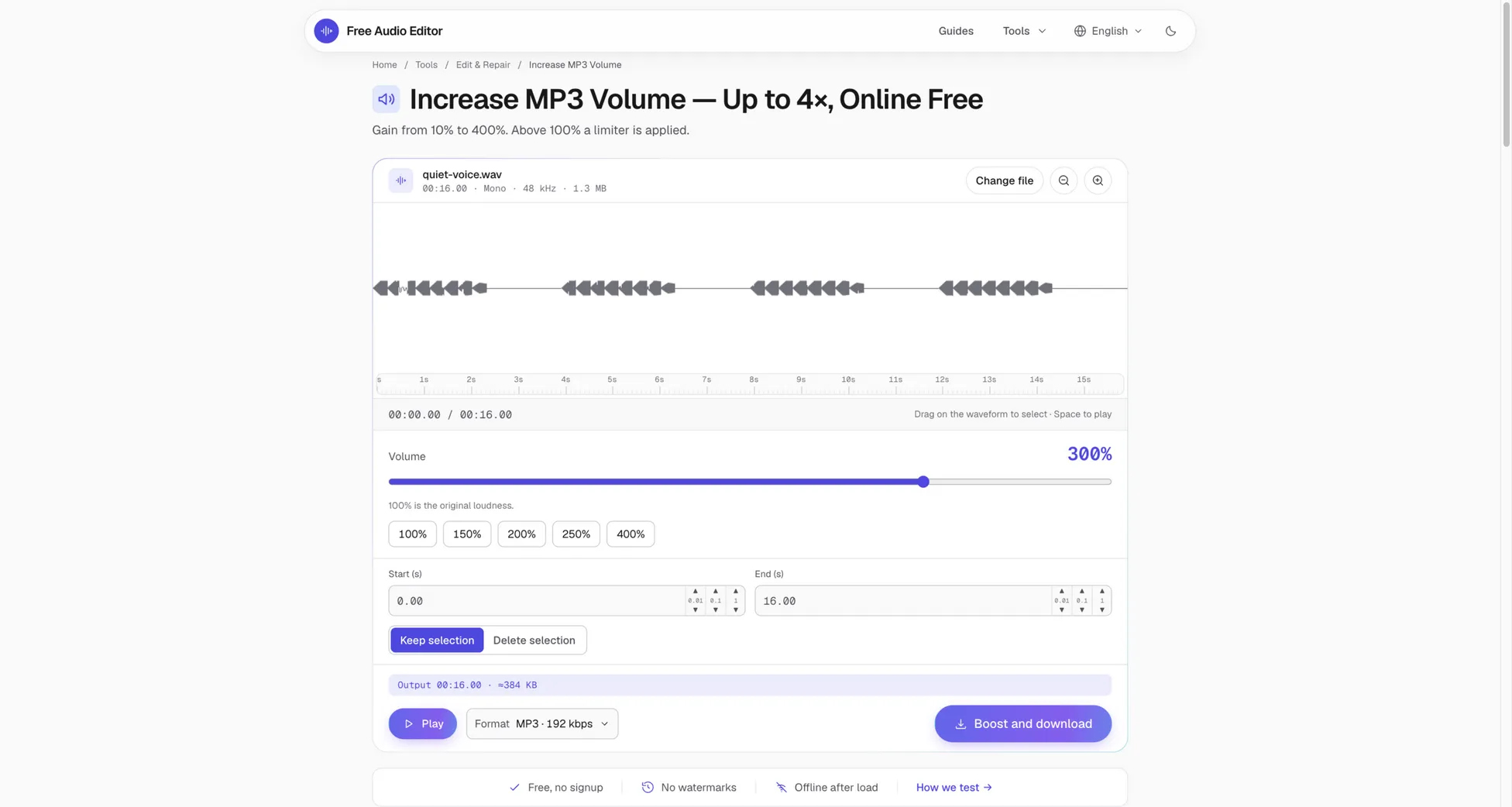
For speech, 150–250% is the practical range; the demo above sits at 300% on a very quiet file. Listen as you push: when the loud moments start to sound strained or the hiss between words rises with the voice, back off 10–20% — gain raises the noise floor along with the words, and why a recording is quiet in the first place is often a microphone-distance problem no amount of gain fully repairs.
Check yourself: the loud parts sound clean at full listening volume, and the file no longer needs a volume-knob rescue on other devices.
Method 2: compress the jumps, then boost
When the file is not uniformly quiet — whispered phrases, then sudden shouts — plain gain is the wrong tool: raising the quiet words to hearable pushes the shouts straight into the ceiling. Compress first:
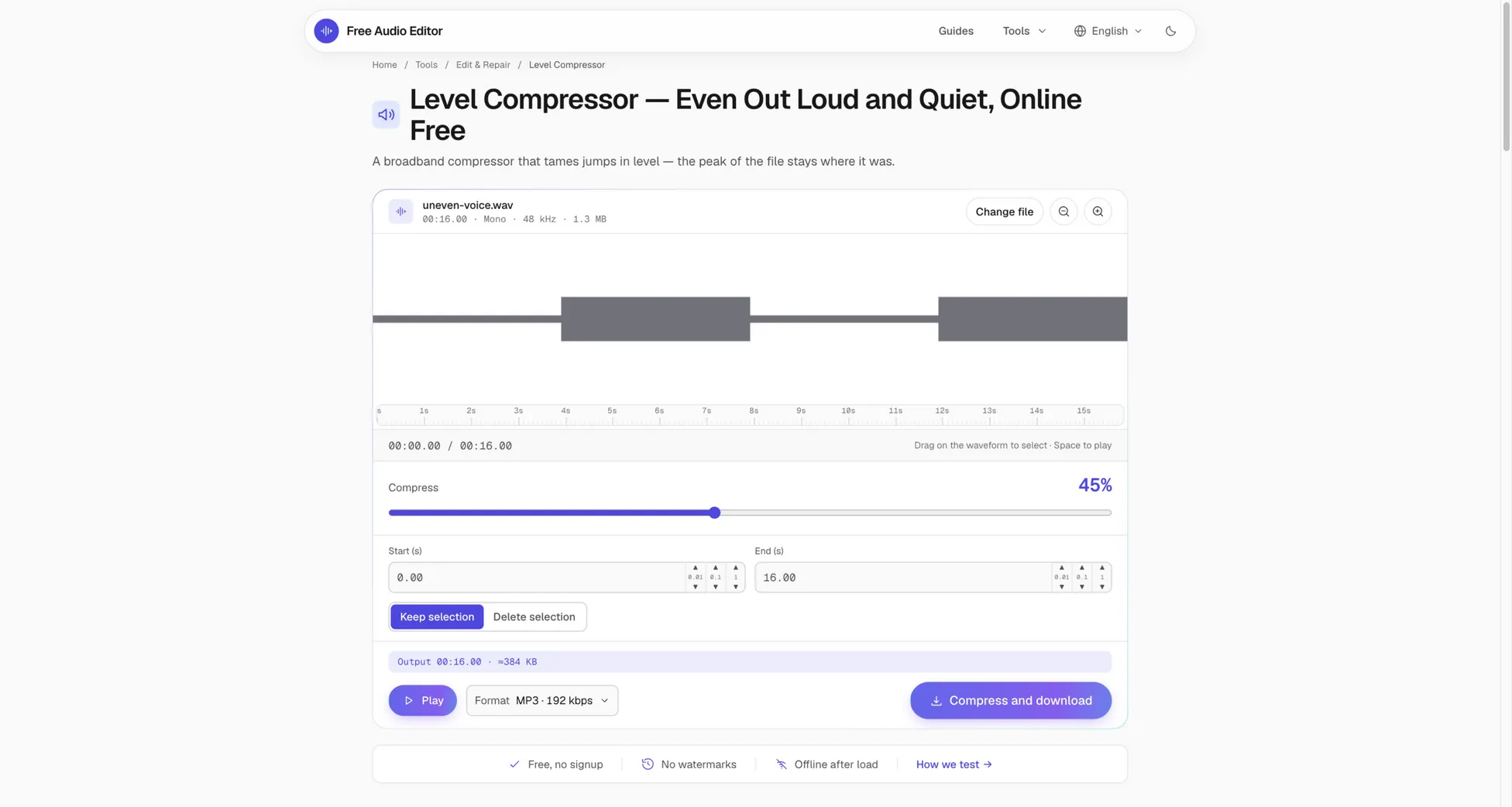
The compressor narrows the gap between the quiet and loud parts while leaving the file’s peak where it was — 30–50% is enough for most speech, and 100% is a heavy squash. After compressing, the quiet parts have headroom, and a boost of 150–250% lifts the whole file cleanly. Whether compression or normalization fits your file better is its own decision; the short version: one global level problem → Method 1 or 3, unevenness → this one.
Check yourself: the quiet words are audible and the loud ones no longer jump out — the file sounds like one person speaking at one distance.
Method 3: normalize (bring files to one shared level)
When several files must match — a series of episodes, a batch of takes — peak normalization sets every file’s loudest moment to the same level:
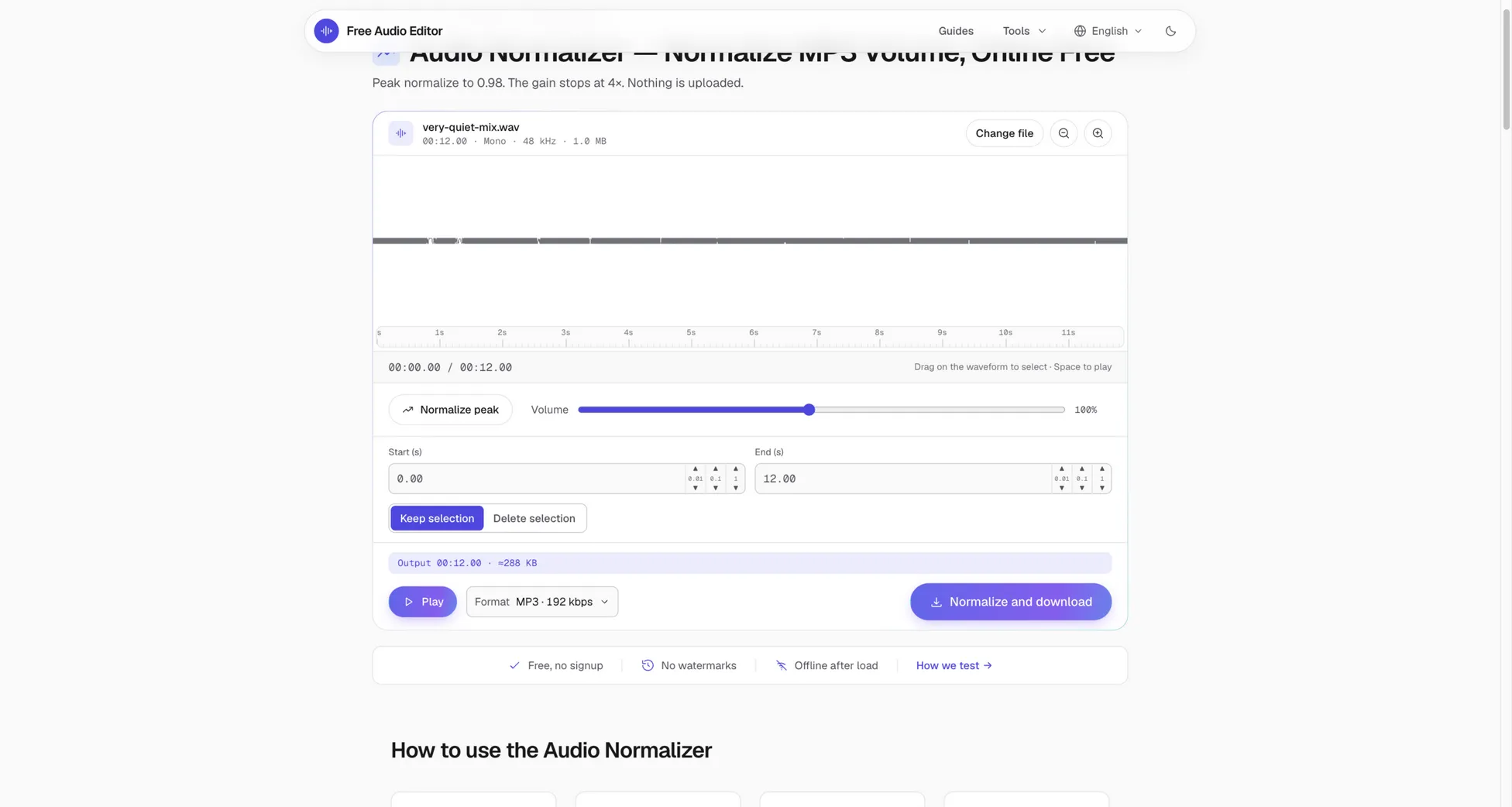
The normalizer targets a peak of 0.98 — just under the ceiling — and its gain stops at 4×, an honest limit: the demo file above is so quiet that reaching 0.98 would need roughly 8×, and the tool will not pretend otherwise. Extreme quietness has a cause gain should not be asked to hide.
One boundary to know: peak normalization matches the peak, not the perceived loudness — two files with the same peak can still sound different volumes. That is what LUFS measures, and it is the next check.
Verify with the meter, not your ears
Ears recalibrate fast during loud listening — the honest check is a measurement. Drop the exported file on the loudness meter and read the integrated LUFS: podcasts target around −16 LUFS, streaming music around −14. The podcast loudness numbers explain the targets; the short version for this page: if the file measures well below its target after a boost, keep raising — the limiter is holding the ceiling, so the remaining room is safe to use.
What boosting cannot fix
- Noise baked into the recording. Gain raises hiss and room noise with the words. If the noise is loud after a modest boost, the fix is a quieter retake, not more gain.
- A system-volume problem. If every file is quiet on one device even at full playback volume, that is the device’s settings, not the file — no edit on this page changes it.
- A mix that was broken before export. One instrument drowning another survives every gain change. That is a remix job, and honestly, a DAW job — Audacity is the free starting point if the project files still exist.
FAQ
How do I increase volume without clipping?
Use a boost with a limiter: the volume tool on this site raises gain up to 400%, and above 100% a limiter catches the loudest peaks before they can clip. Push to 200–300%, listen, and stop when the loud moments start to sound strained. For a file that is uneven — quiet words then sudden shouts — compress first, then boost. Measure the result on the loudness meter instead of trusting your ears after a minute of listening.
Is 100 decibels twice as loud as 90?
Roughly, yes: each 10 dB step is perceived as about twice as loud, so 100 dB sounds about twice as loud as 90 dB — even though it is ten times the sound power. Digital levels work the same perceptual way, which is why a +10 dB gain change feels dramatic while the waveform only looks modestly taller. The number to watch in a file is not dB of volume-knob position but how close the peaks sit to the 0 dBFS ceiling.
How is audio distortion made?
In digital files, distortion is what clipping sounds like: every sample pushed above 0 dBFS gets flattened at the ceiling, and the flattened tops read as harshness, crackle, or fuzz. It happens when gain is added with nothing holding the peaks — which is exactly what the limiter in the volume tool prevents. Analog-style saturation is a separate, deliberate effect; accidental digital clipping is never the goal.
How do I get a loud master without distortion?
A master — in the music-production sense of a final mixed track — is DAW territory: chains of EQ, compression, and limiting with metering, aimed at a platform loudness target. What this page covers is the single-file path: limiter-protected gain, compression, and peak normalization in a browser, verified in LUFS. If the job is really mastering, a DAW such as the free Audacity is the honest tool for it.
Sources
More hands-on walkthroughs in all guides.