MP4 to MP3 — convert a video in your browser
· Free Audio Editor Guides
Converting a video to MP3 means one thing: keep the soundtrack, throw away the picture, and save an audio file you can play anywhere. The usual online converter does that by uploading the whole video to someone else’s server. That works, and it is a bad default for a lecture, a family video, or anything you would not post publicly. The browser you already have can decode the soundtrack itself.
Local conversion versus an upload site
An upload converter takes the file, runs ffmpeg on a server, and gives you a download link. The trade is simple. You get broad format support, including awkward soundtracks, and you give the operator the file for as long as their retention policy says. Many of these sites also cap the free tier at a few hundred megabytes, add a queue, or wrap the MP3 in a second page of ads.
A local conversion never sends the video. The tab decodes the audio track with the same media engine that plays the file, then encodes MP3 on the device. The encoder, lamejs, ships with this site and loads only for that export. A three-minute clip finishes in a second or two on a recent phone, because there is no upload. A long file is limited by memory, not by a host’s quota: if the video plays in the browser, the soundtrack can usually be extracted.
This page converts a file you already have. It does not fetch a video from YouTube, TikTok, or any other site.
Use an upload site, or ffmpeg on your own computer, only when the browser cannot decode the audio. That case is specific, and it is the next section but one.
Do the conversion
- Open the MP4 to MP3 converter.
- Drop the video, or click to browse. MP4, WebM and MOV are the containers people actually have. M4A audio files work too — there is no picture to drop.
- The format menu opens on MP3 · 320 kbps. Change it if you want, then click Convert to MP3. The file downloads to your device. The video stays where it was.

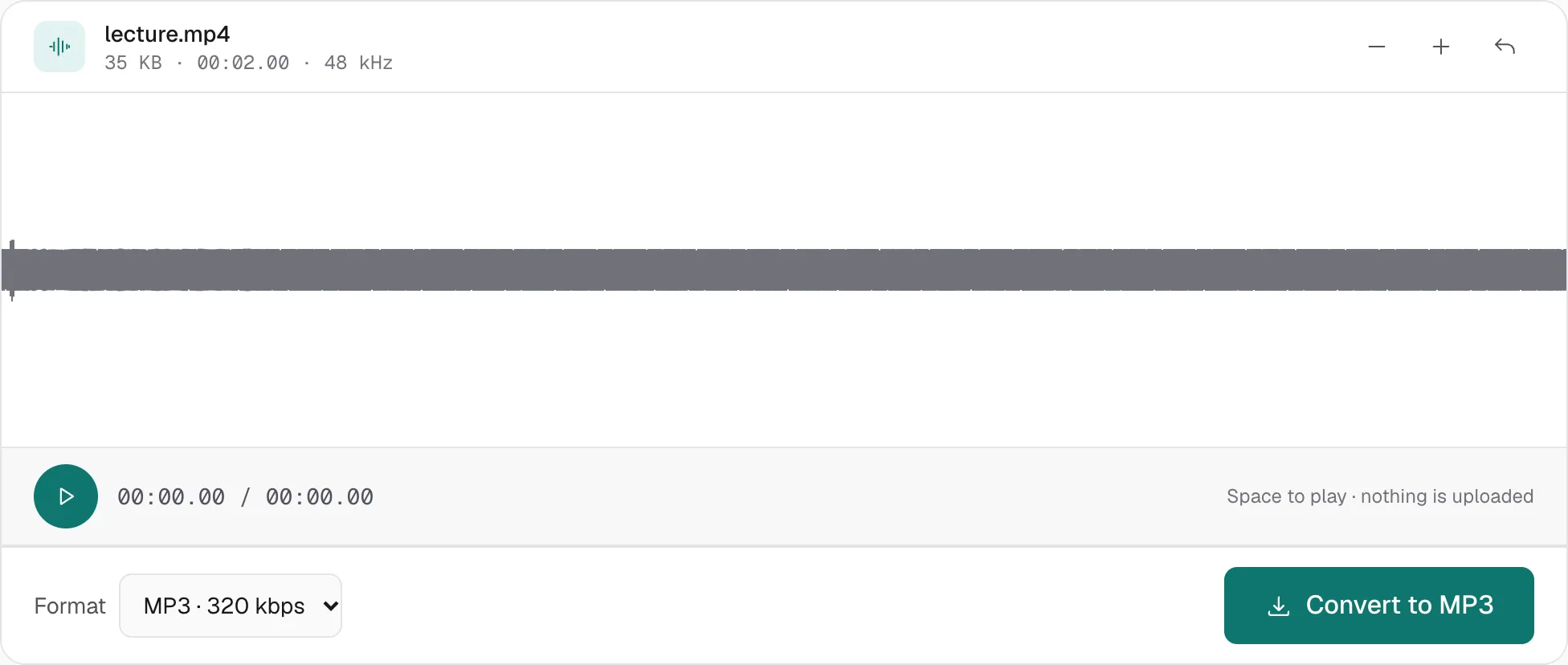
The line under the drop zone lists ordinary audio formats and says “up to about an hour.” That sentence is shared with the other tools. Here a long video is limited by the device’s memory, not by that line.
The same menu includes WAV · lossless. Pick that when you still plan to trim or normalize and only want one MP3 encode at the end. Encoding MP3 twice is the step that loses detail. The audio extractor is the same engine with WAV already selected.
Which bitrate
The menu has three MP3 rates. Bigger is not automatically better once you are past what you can hear.
- 128 kbps is the right rate for speech: a lecture, a meeting, a voice memo someone filmed. Music at 128 kbps is listenable and slightly dull. Use it when the file has to be small.
- 192 kbps is the sensible middle for music you will actually listen to. Most people cannot pick it from a higher rate on ordinary headphones.
- 320 kbps is what this page selects when the file opens, and it is the top of MP3. Leave it when the source is a clean recording, or when someone asked for “the best MP3.” It is still lossy. If the next step is more editing, export WAV instead and encode once, later.
A phone video of a concert does not become a studio master at 320 kbps. The bitrate only describes the MP3. It cannot put back what the camera microphone never captured.
What the browser cannot decode
The conversion works when the browser can already play the audio in that file. In practice that is AAC inside MP4 and MOV, and Opus or Vorbis inside WebM. Chrome, Firefox and Safari all handle those.
It does not work for soundtracks the browser has no decoder for. The common ones:
- AC3 (Dolby Digital) on many DVDs and some downloaded MKV or MP4 files.
- DTS, the other surround codec on the same discs.
- A video that does not play when you open it in a plain browser tab. If the player shows a picture and silence, the soundtrack is the part we cannot read.
There is no honest “we support every format” claim available to a page that refuses to upload. For those files, install ffmpeg and run it locally — you keep the privacy property, and you gain the decoders. A website that accepts the upload will also work, if you have decided the file is fine to send.
After you have the MP3
The soundtrack is a normal audio file from this point.
- Cut the part you wanted with the MP3 cutter — a song from a concert clip, a question from a lecture.
- If the whole thing is quietly recorded, normalize it so the peak sits just under clipping, or raise it by a chosen amount if you already know how much louder it should be. Normalize is measured; the booster is a slider. They are not the same control.
- A phone video’s soundtrack is often the reason people want this conversion in the first place. Once it is an MP3, it plays in a car, a podcast app, or a cheap speaker that will not open the video.
The picture is discarded on purpose. If you needed the video with a louder soundtrack baked back in, this is the wrong tool — nothing here remuxes audio into a new MP4. You leave with the sound, which is what “convert video to MP3” asks for.
More hands-on walkthroughs in all guides.